Gridely
Pixel art

A free pixel art maker that starts from a photo — or from nothing

Convert any picture into pixel art with a palette you choose, or open a blank grid and draw. Pen, bucket fill, selection and unlimited undo, right in the browser.

  • Start without an account
  • Free charts up to 500×500
  • Works on phone, tablet and desktop
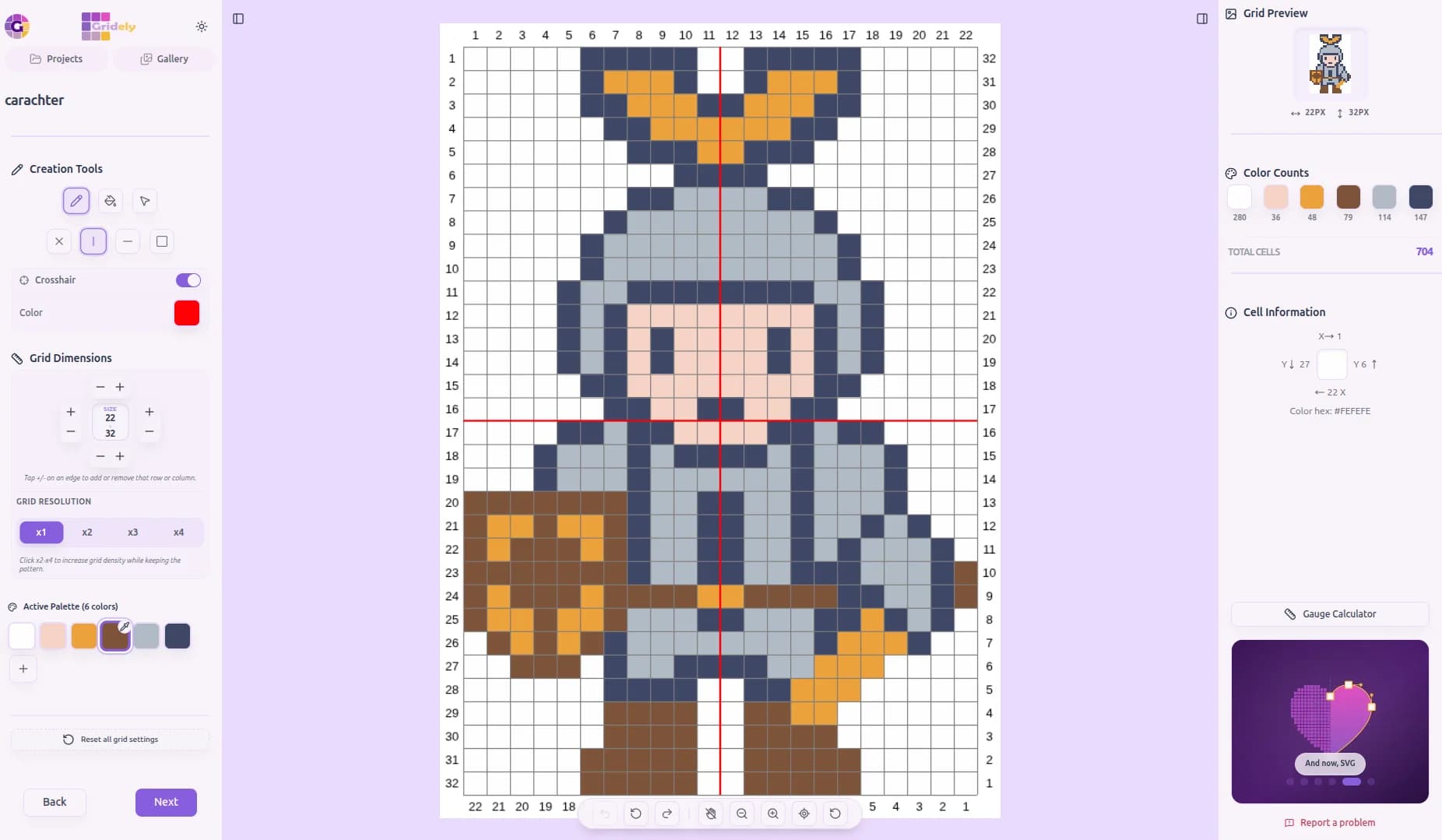
A pixel art knight drawn on a numbered grid in the Gridely editor, with the symmetry guide on

Pixel art in three steps

Start from a photo for a quick base, or skip straight to drawing.

  1. Step 1

    Pick a canvas

    Upload a picture to pixelate, or set your own grid size — 16 × 16 for an icon, 64 × 64 for a character, larger for a scene.

  2. Step 2

    Limit the palette

    Choose how many colours the piece uses. A small, deliberate palette is what makes pixel art look like pixel art.

  3. Step 3

    Draw and export

    Refine it pixel by pixel, then export a PNG or a timelapse video of the grid filling in.

The tools pixel artists actually use

Nothing to install, no account needed to start drawing.

Photo to pixel art

Downscale a photo to your grid size and reduce it to your palette in one step, then adjust brightness, contrast and filters.

Pen, bucket fill and selection

Draw single pixels, flood-fill areas, and select regions to move, copy or recolour.

Editable palette

Change a colour once and every pixel using it updates. Add, merge and reorder colours as the piece develops.

Unlimited undo and redo

Experiment freely — every step can be walked back.

Squares, circles or triangles

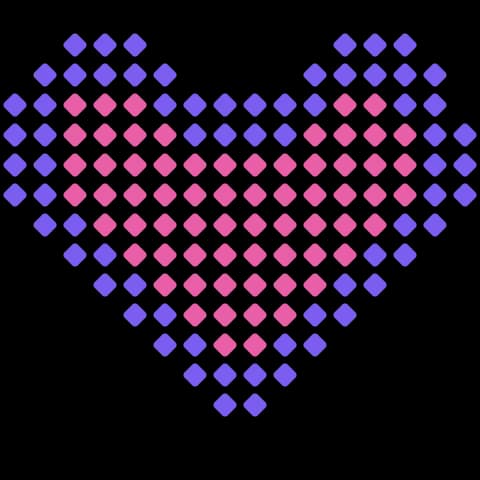
Preview the grid as square pixels, round beads or triangles to match the medium you are designing for.

PNG and timelapse export

Export a clean image for sharing, or a video of the piece being built pixel by pixel.

Making pixel art from a photo that doesn't look like a blurry photo

Automatic pixelation gives you a starting point. The difference between that and pixel art is a few deliberate choices.

Go smaller than you think

Pixel art reads best at small sizes where every pixel is a decision. A portrait at 32 × 32 forces you to choose which features matter; at 200 × 200 it is just a low-resolution photo. Start small, and only go bigger when the subject really needs it.

Use a limited palette

Classic pixel art often uses 8 to 16 colours. A limited palette makes the image cohesive and forces clear shapes. Convert with a low colour count, then hand-pick the colours: a warmer shadow or a brighter highlight does more than an extra shade ever will.

Clean the outlines by hand

Conversion leaves 'jaggies' — stair-step lines with uneven steps — and stray pixels along edges. Redraw important outlines so each step is regular, and remove single pixels that do not belong to any shape. This pass is what turns a pixelated photo into pixel art.

Pixel art for crafts

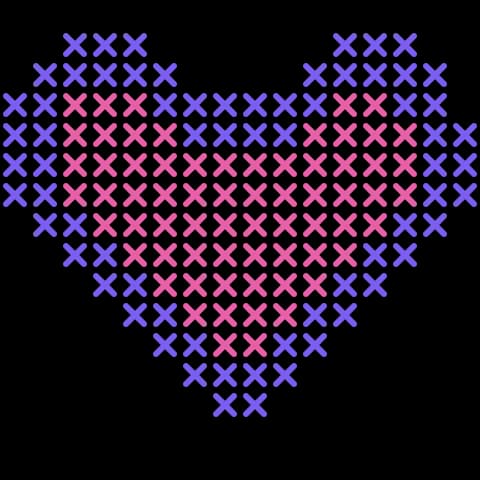
The same grid is a pattern for fuse beads, cross stitch, crochet or knitting. Switch the cell shape to circles to preview Perler or Hama beads, and use the grid reader to place them row by row.
Pixel art maker — questions

Is this pixel art maker free?

Yes. Drawing, converting photos and editing are free on grids up to 500×500 with up to 20 colours. Paid plans raise that to 1000×1000 and 50 colours.

Do I need to sign up?

No — open the editor and start drawing. A free account is needed to save projects and to export.

What size should my pixel art be?

16 × 16 or 32 × 32 for icons and sprites, 64 × 64 for characters with some detail, and 100 or more for scenes and portraits.

Can I export a PNG?

Yes, as a PNG image or as a timelapse video of the grid filling in.

Can I turn my pixel art into a bead or stitch pattern?

Yes. The same chart works as a pattern for fuse beads, cross stitch, crochet or knitting, and can be exported as a printable PDF.

Ready to Make Your First Pattern?

Start designing patterns, charts, and pixel-based creations with Gridely. Designing is free, it's easy to get started, and it's growing with its community.

    Pixel Art Maker — Turn Photos into Pixel Art, Free