How Gridely Works
From a photo of a physical chart to a print-ready pattern — see every step of the Gridely workflow, including the tools that make it feel like a professional editor.
Four Ways to Start
However you begin — a photo, a physical chart, a blank canvas, or a project saved to your account — you land in the same powerful editor.
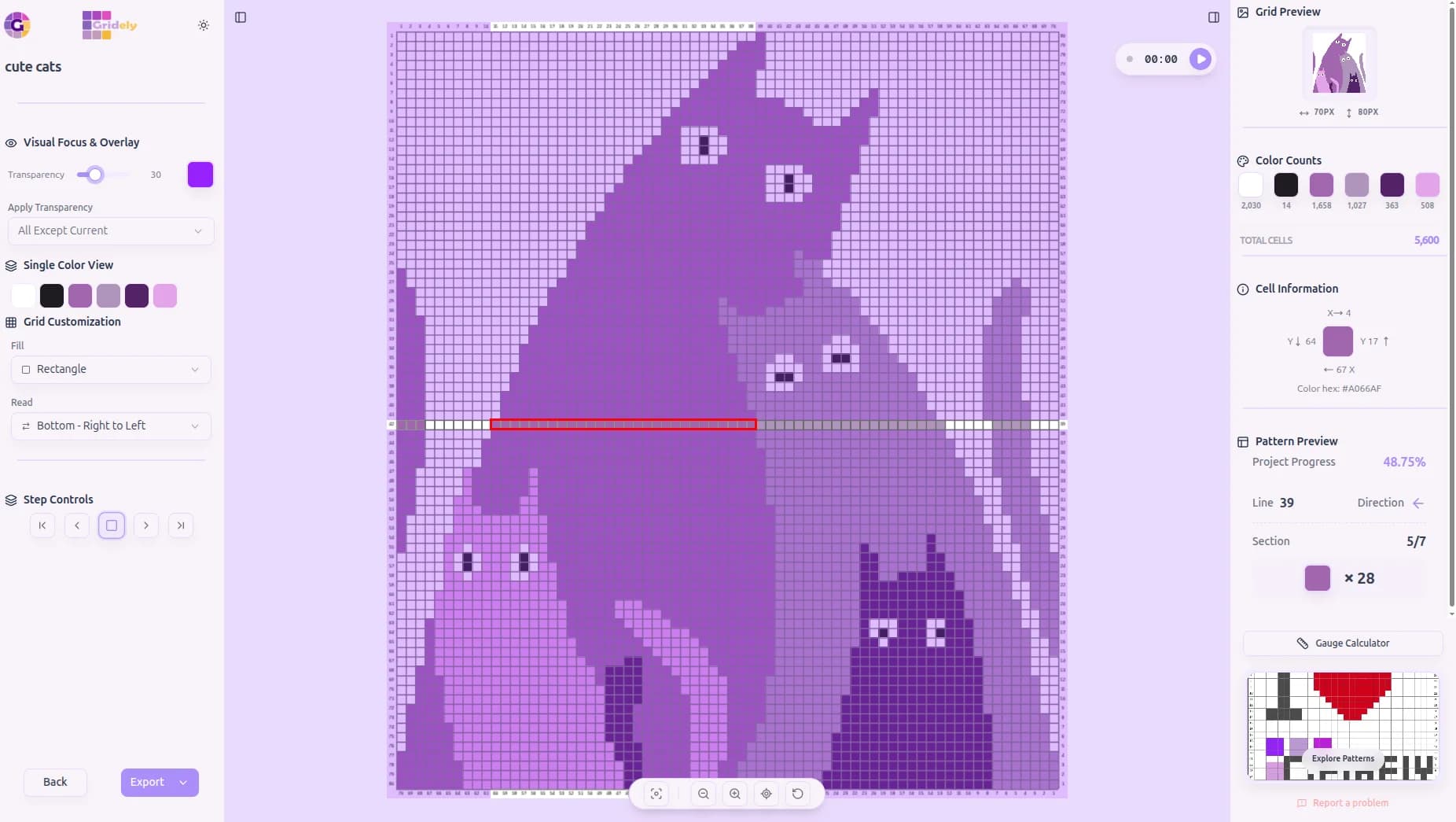
One chart, Gridely, many crafts
Every pattern is a colour per square. What that square becomes — a stitch, a bead, a knot — is up to you, and the chart does not change.
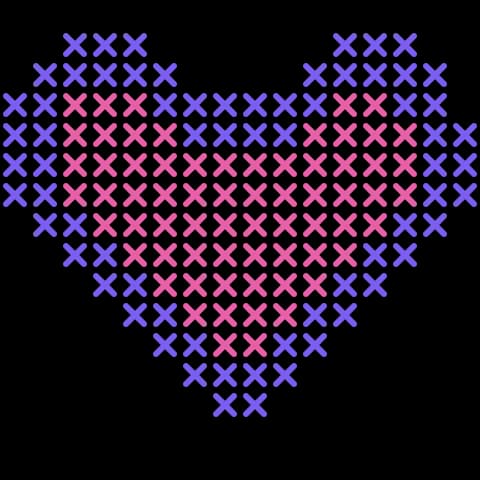
Cross stitch
One X per square on aida or evenweave, with a symbol key so close shades stay apart in print.
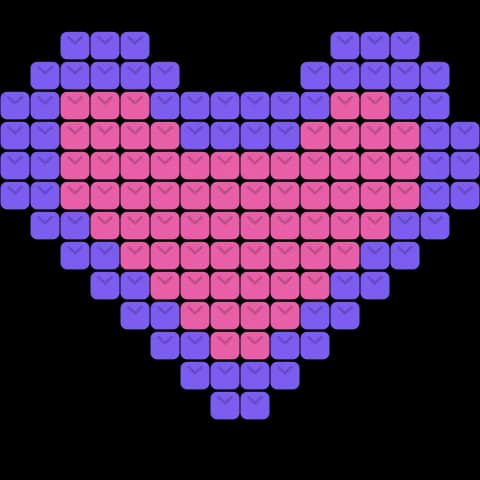
Tapestry crochet
One single crochet per square, carrying the colour you are not using inside the stitch.
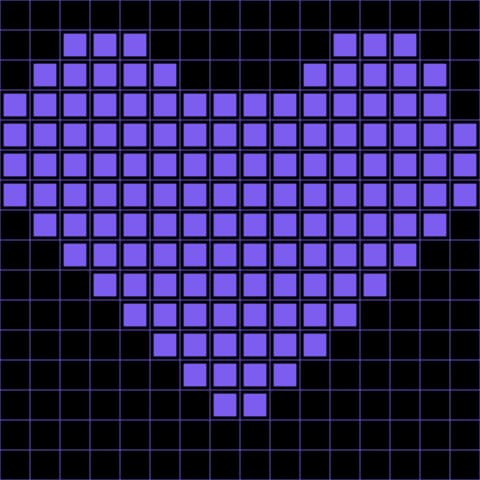
Filet crochet
Two states rather than many colours: each square is a filled block or an open mesh.
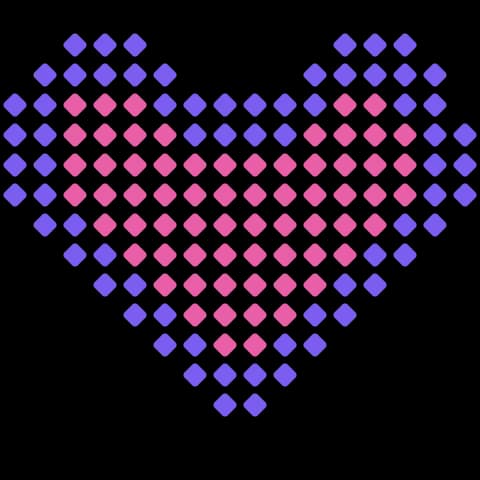
Corner to corner
Worked on the diagonal from one corner. The reader follows the same diagonals you do.
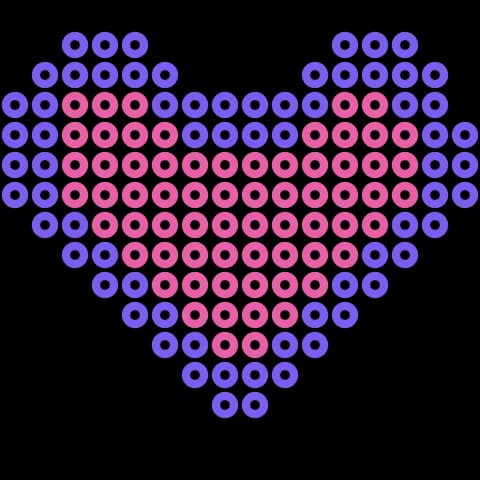
Fuse beads
Hama, Perler and Artkal pegboards — one bead per square, ironed once the board is full.
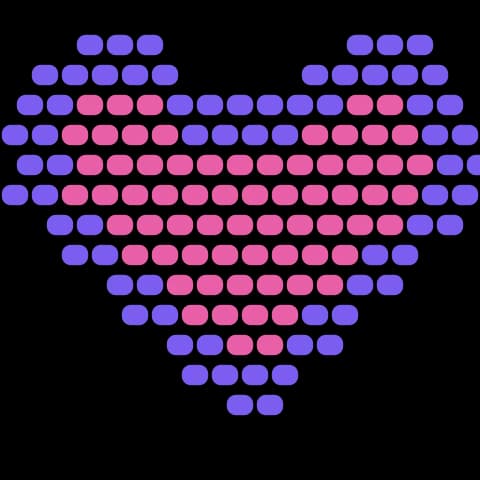
Bead weaving
Loom and brick stitch, including the half-bead offset that brick stitch puts on alternate rows.
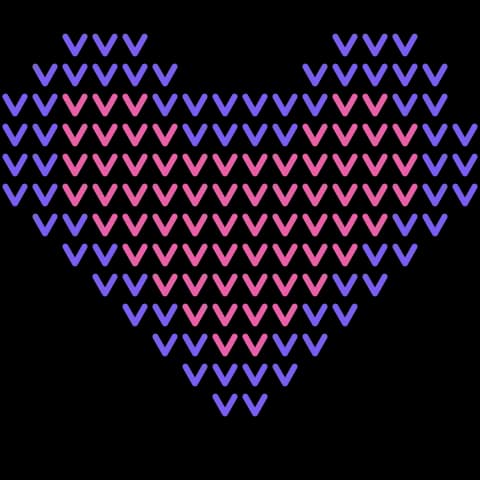
Knitting colourwork
Fair Isle and intarsia charts: one stitch per square, read the way the piece is worked.
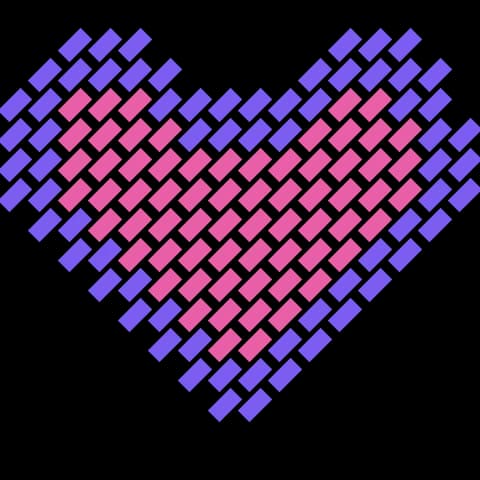
Needlepoint
Tent or half-cross stitch on canvas, every stitch leaning the same way.
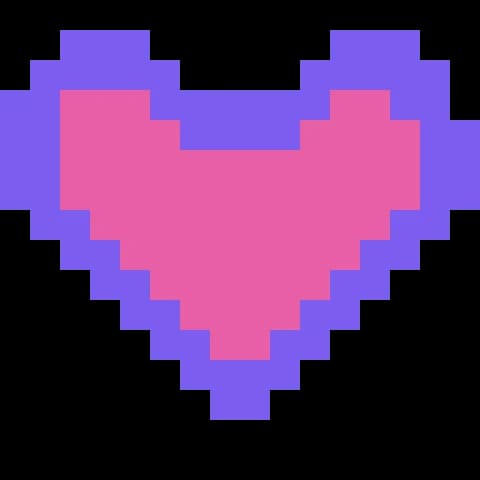
Pixel art
Sprites, avatars and icons at their true size, exported clean with no resampling.
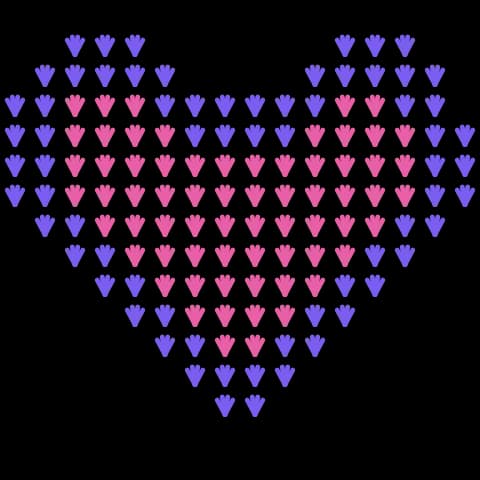
Latch hook rugs
One knot per square of rug canvas, in cut pile — chunky grids, few colours.
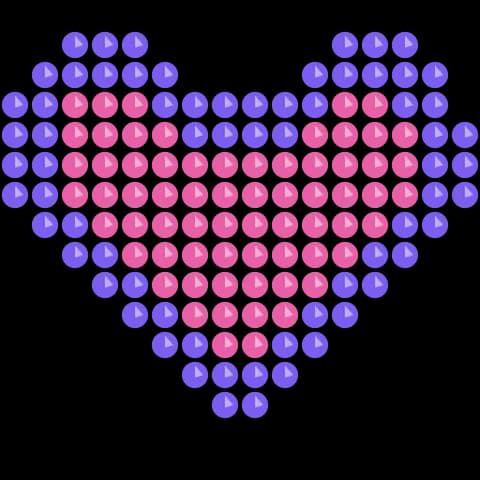
Diamond painting
One resin drill per square, placed by symbol onto the adhesive canvas.
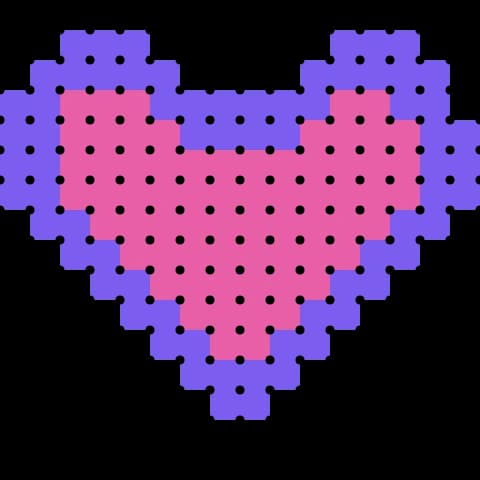
Plastic canvas
Stitched over a stiff grid, so the chart and the canvas already share coordinates.
If your craft is worked square by square, the chart already fits it. These are the ones we hear about most, not a list of what is allowed.
1. Snap a Photo, Get an Instant Grid
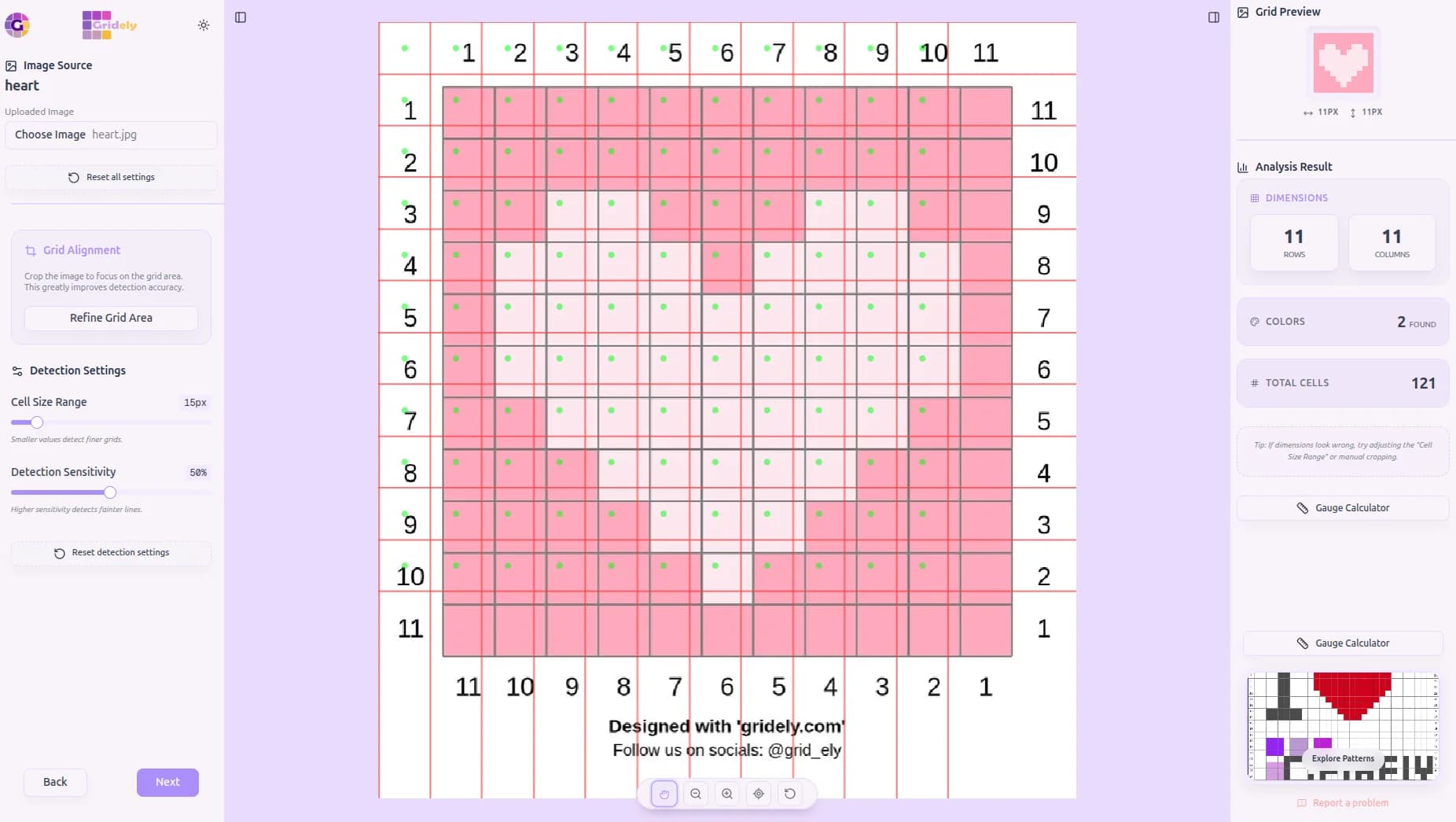
Already have a physical chart, a cross-stitch, a bead board, or a painted canvas? Just take a photo — even at an angle — and watch it snap into a perfectly squared, ready-to-edit grid.
A live overlay shows you exactly what was detected as you go, so you always know it worked before moving on.
- Automatically straightens photos taken at an angle, no perfectly straight shot needed
- Live red-line and green-dot overlay shows every detected row and column
- Adjustable Cell Size and Sensitivity sliders handle tricky or faint grids
- Manual crop tool isolates just the grid area from a busy photo
- Colors are picked up straight from your photo to seed your starting palette
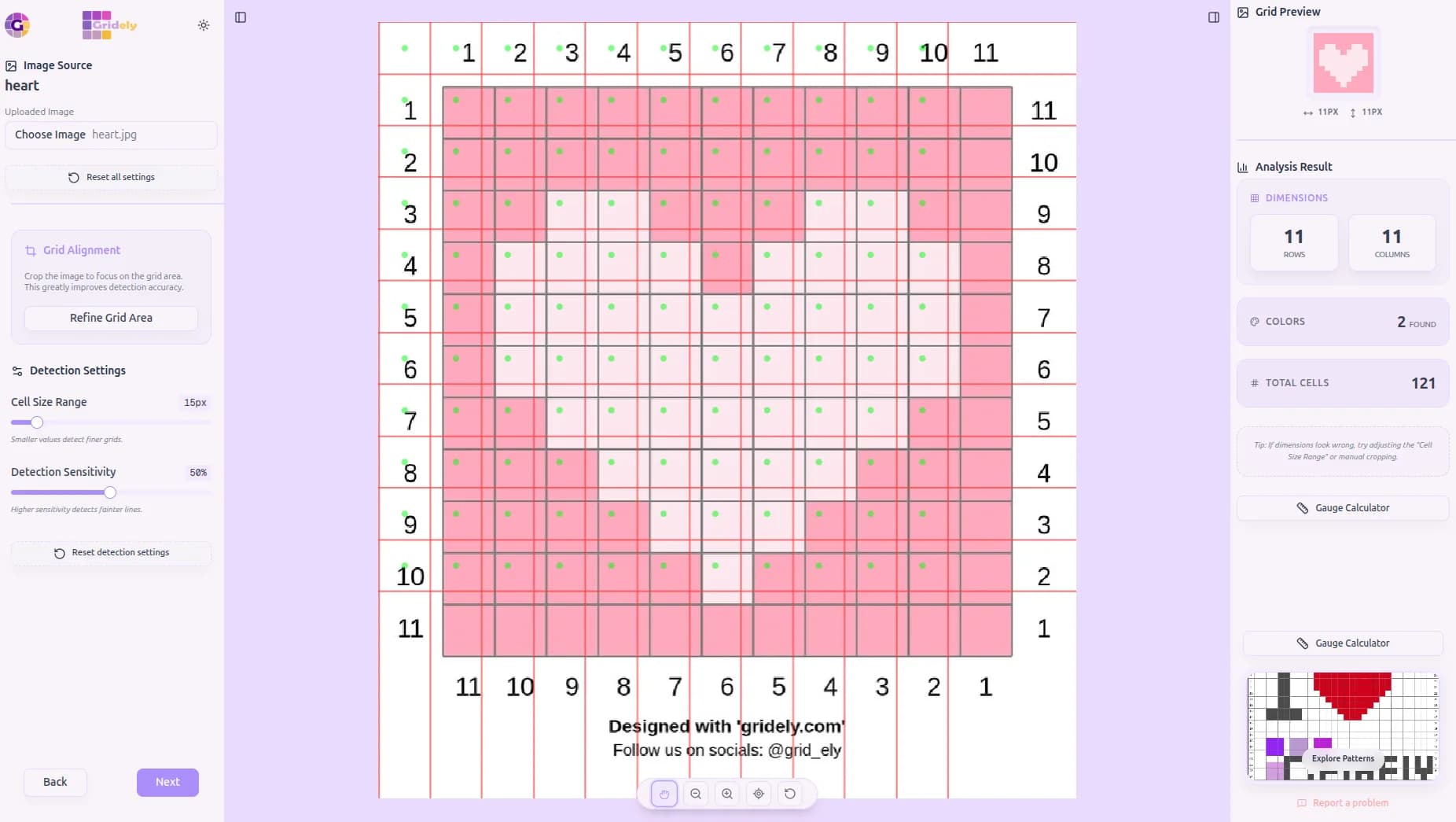
Photograph Any Grid
A physical cross-stitch, chart, or bead board — read straight from your photo.
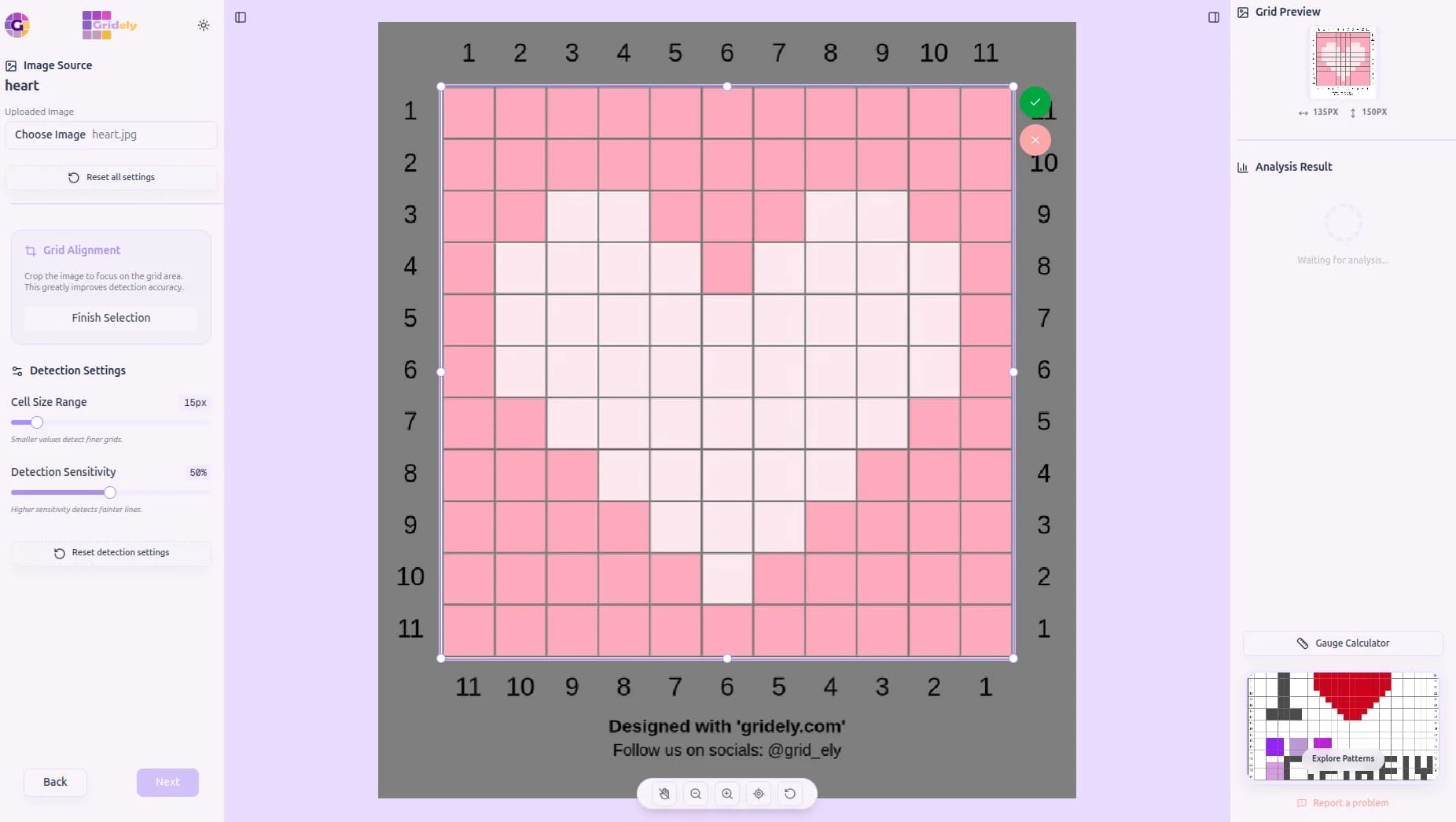
Isolate the Grid
Crop to just the grid area for the most accurate detection.
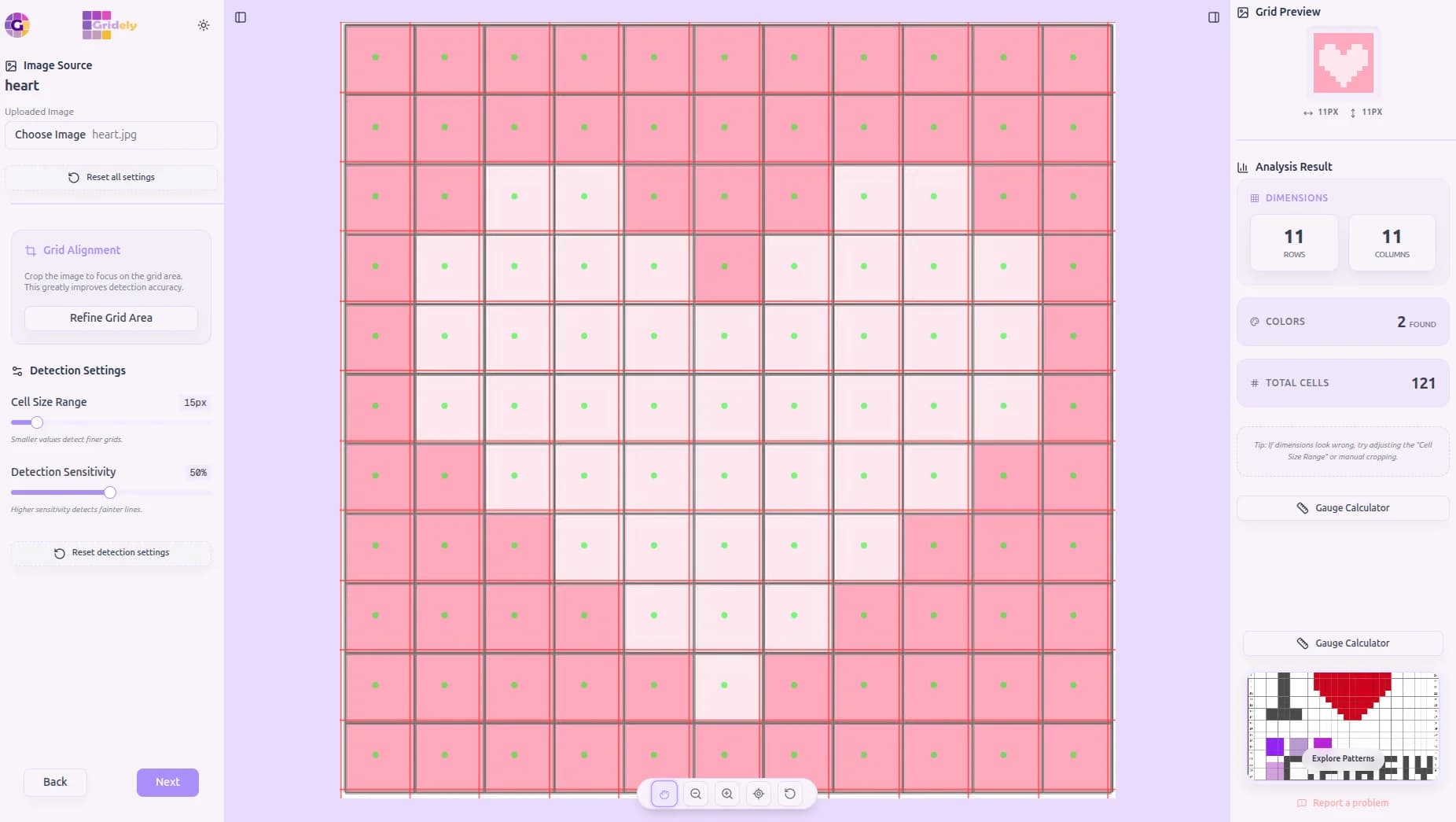
Instant Auto-Detection
Rows, columns, and colors found automatically, live.
Recolor to Taste
Not loving the original colors? Swap them the moment detection finishes.
Make It Yours
Upscale, add a border, and finish it in the full grid editor.
2. Image to Grid Wizard
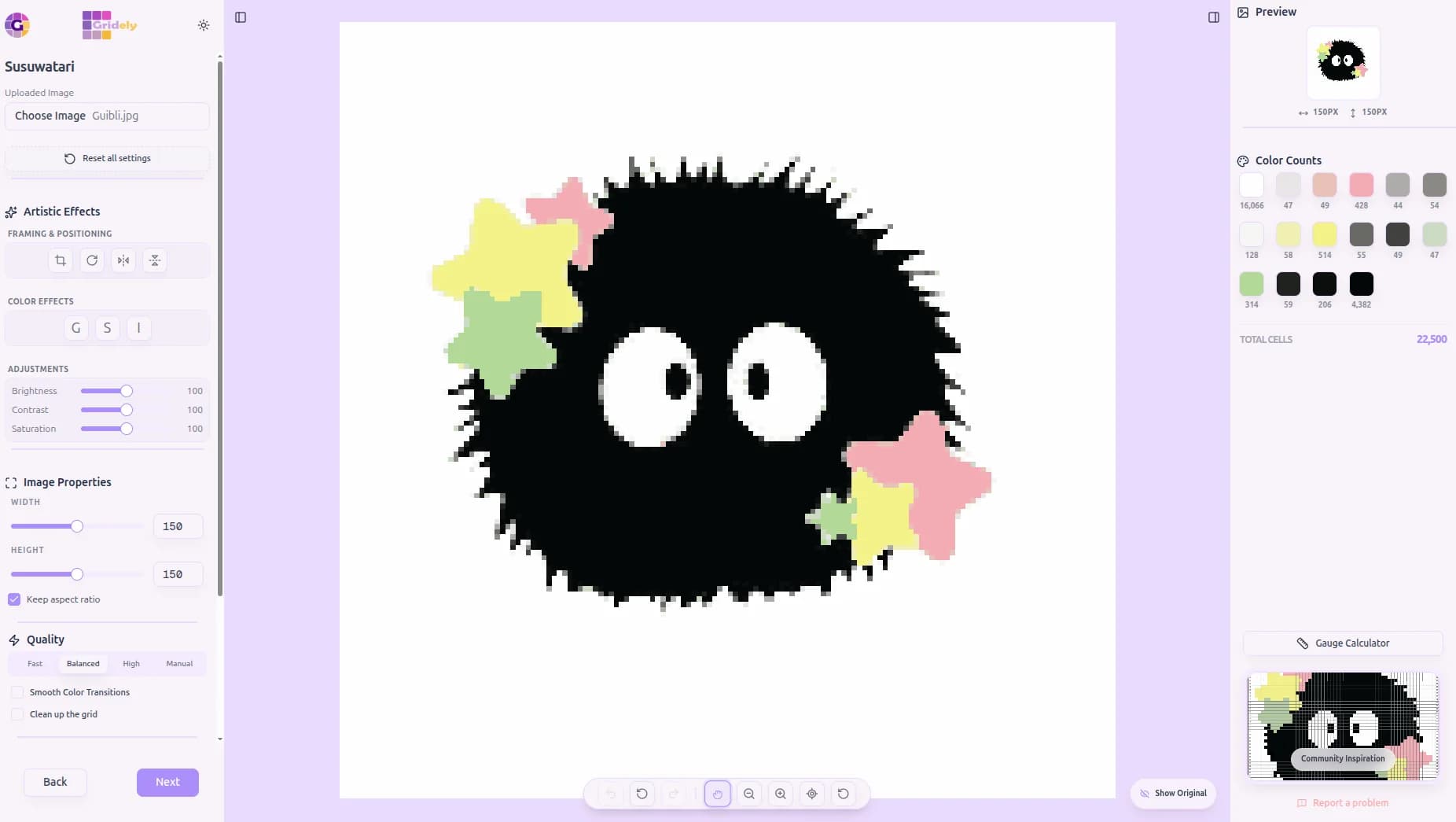
Transform any photo into a simplified grid in seconds. Adjust how it looks by playing with brightness and contrast, or add fun filters like vintage sepia or classic grayscale.
Choose from four color-matching modes — Fast, Balanced, High Quality, or Manual, where you pick your exact colors by clicking right on the photo.
- Choose the exact number of colors to use — up to 20 on a free account, 50 on a paid plan
- Adjust brightness, contrast, saturation, and color richness
- Smooth color blending creates richer gradients even with a small palette
- "Clean up the grid" automatically removes stray, hard-to-craft pixels
- Resize your project to any width or height — up to 500 cells per side on a free account, 1000 on a paid plan
- Flip and rotate to get the perfect orientation
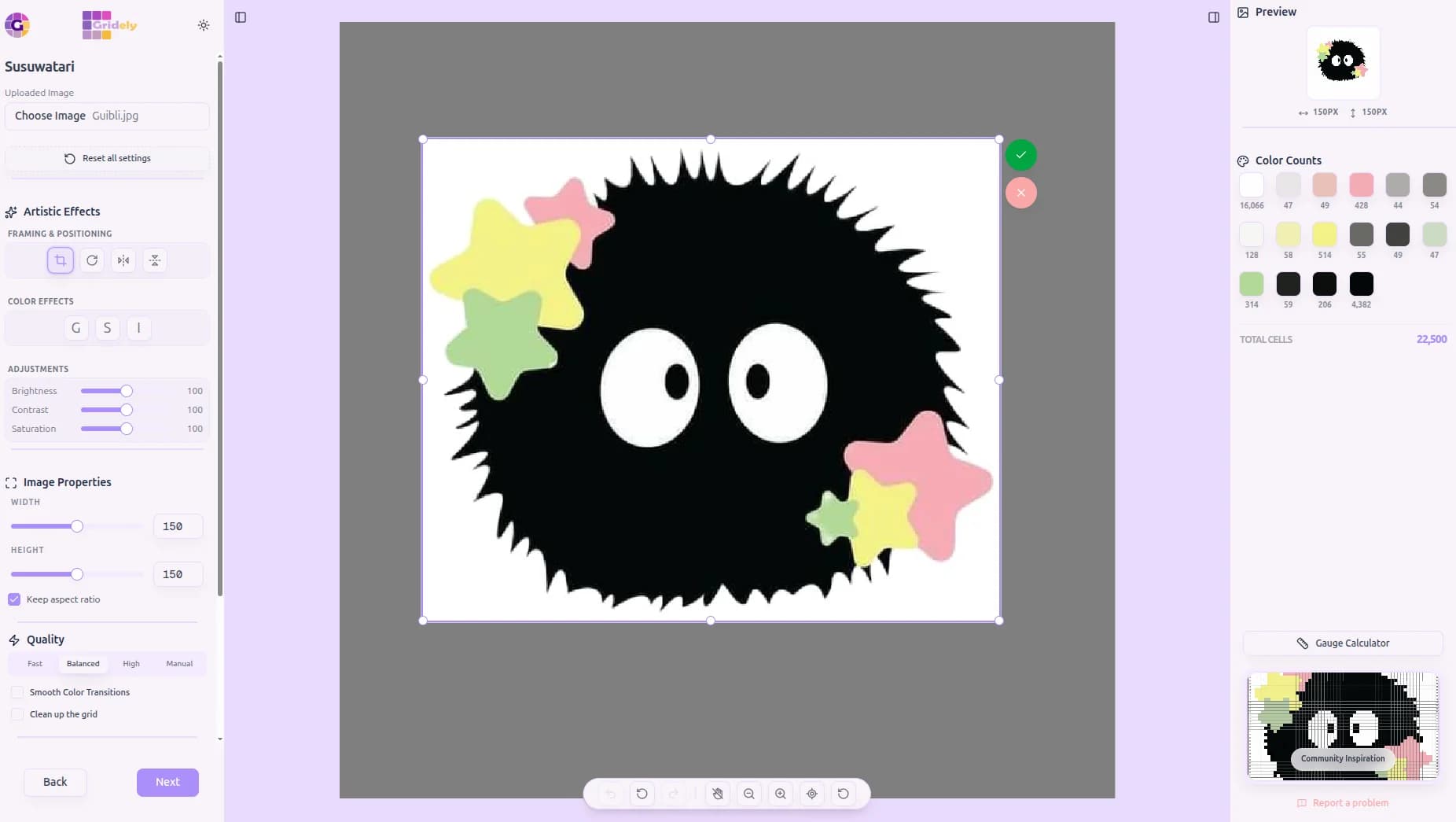
Frame It Your Way
Crop to the exact area you want to turn into a pattern.
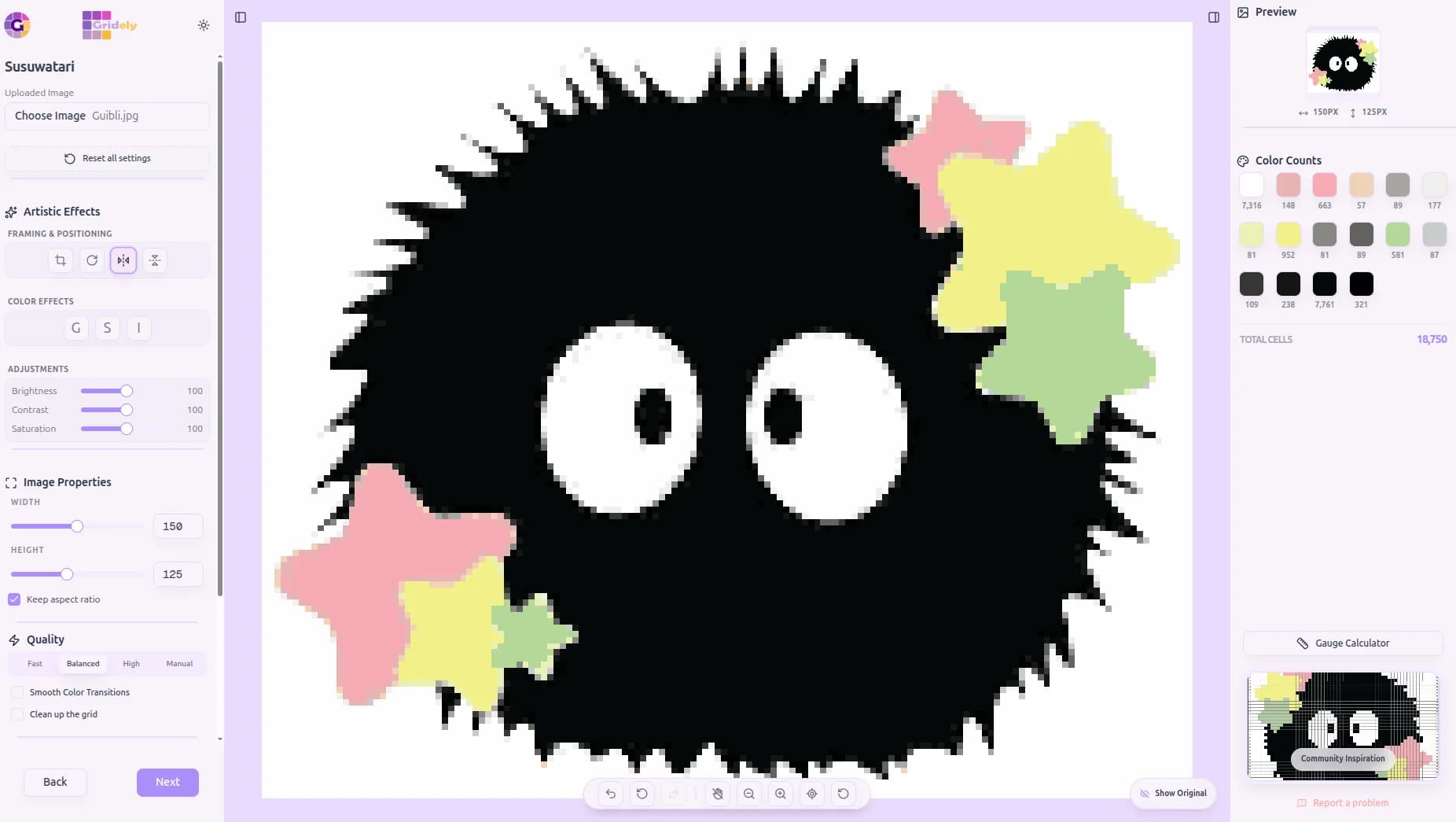
Flip & Orient
Mirror or rotate your image until it faces just the way you like.
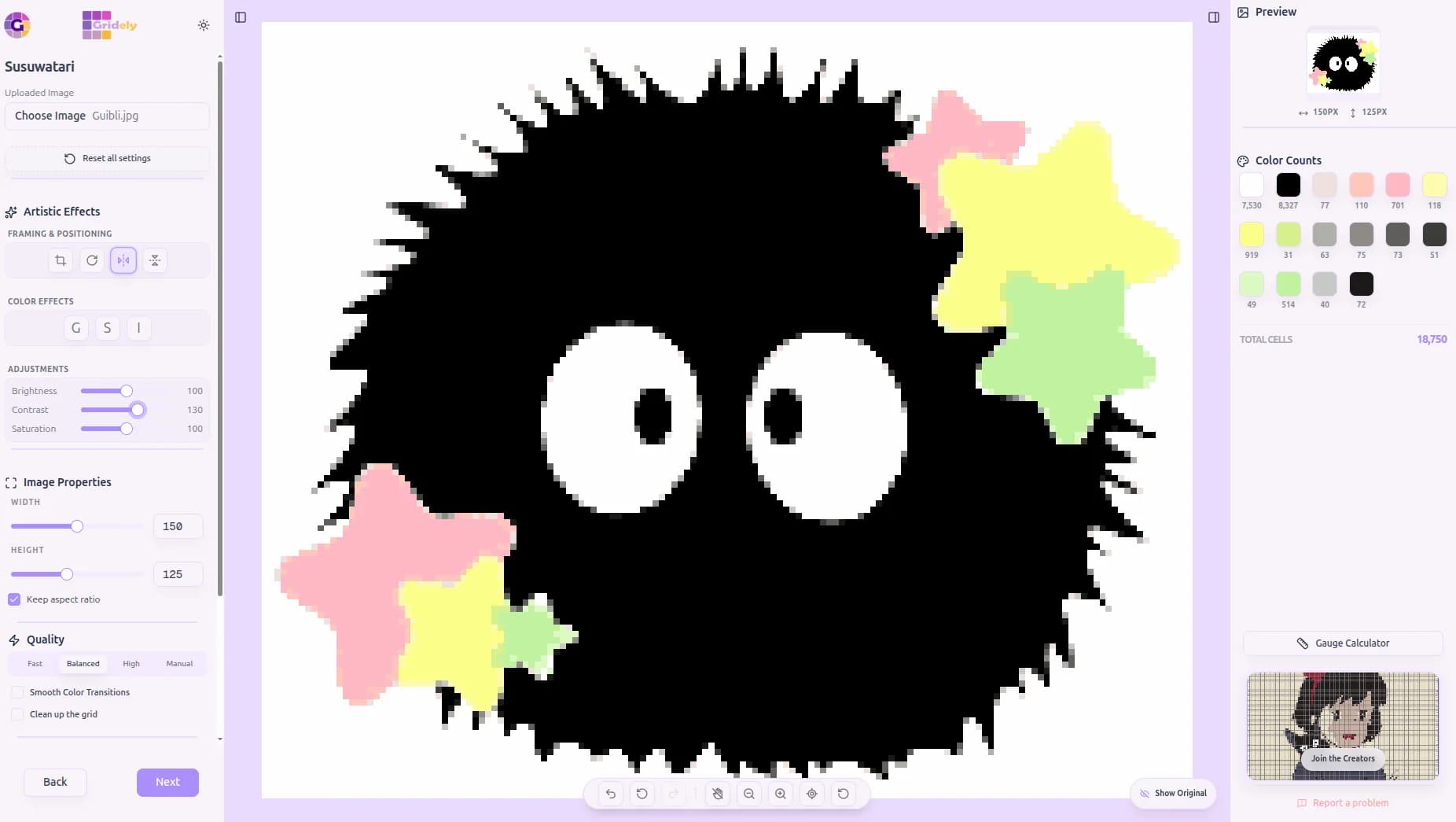
Dial In the Look
Push brightness, contrast, and saturation to sharpen every detail.
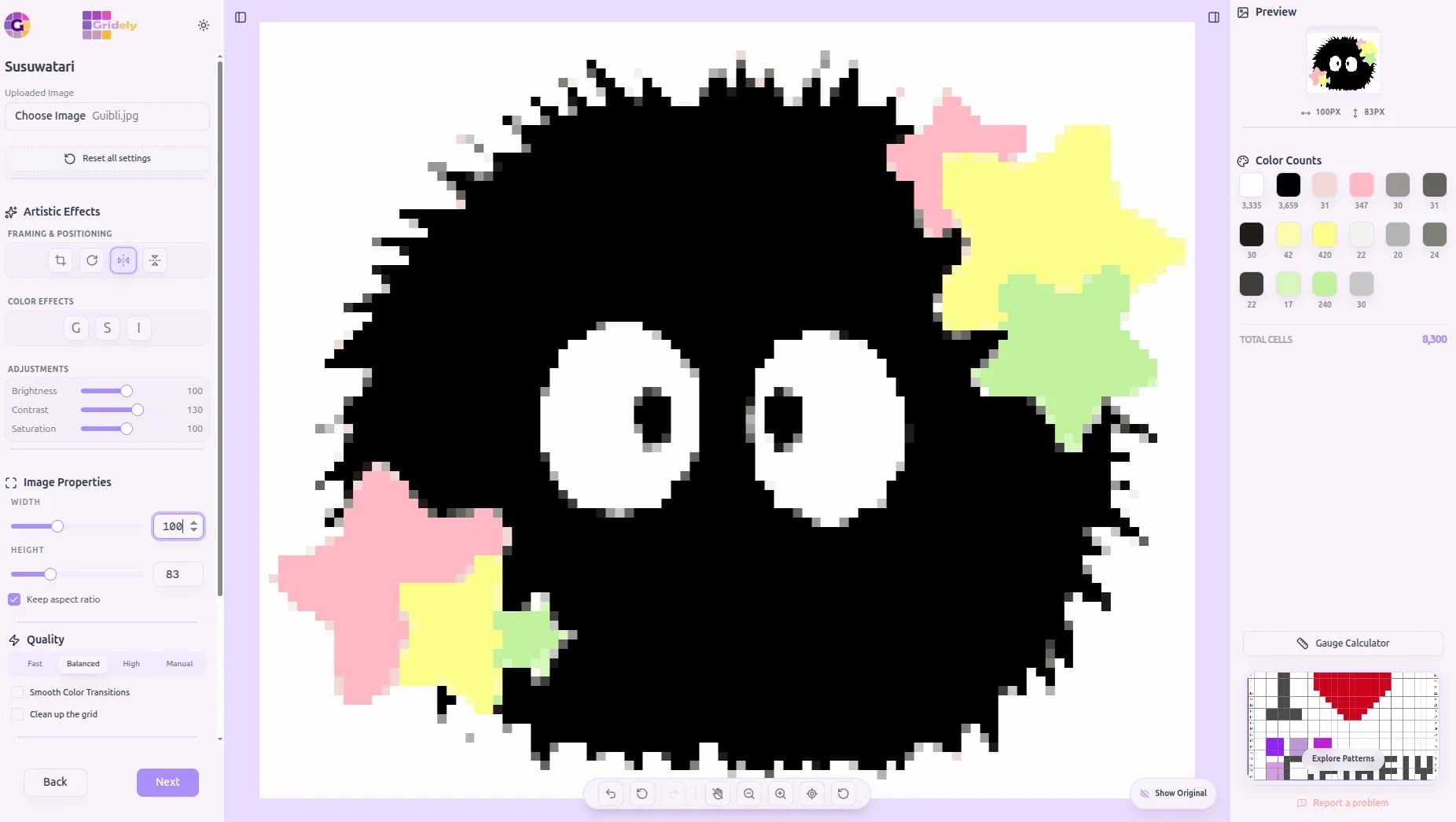
Any Size You Need
Resize down to the exact stitch count your project calls for.
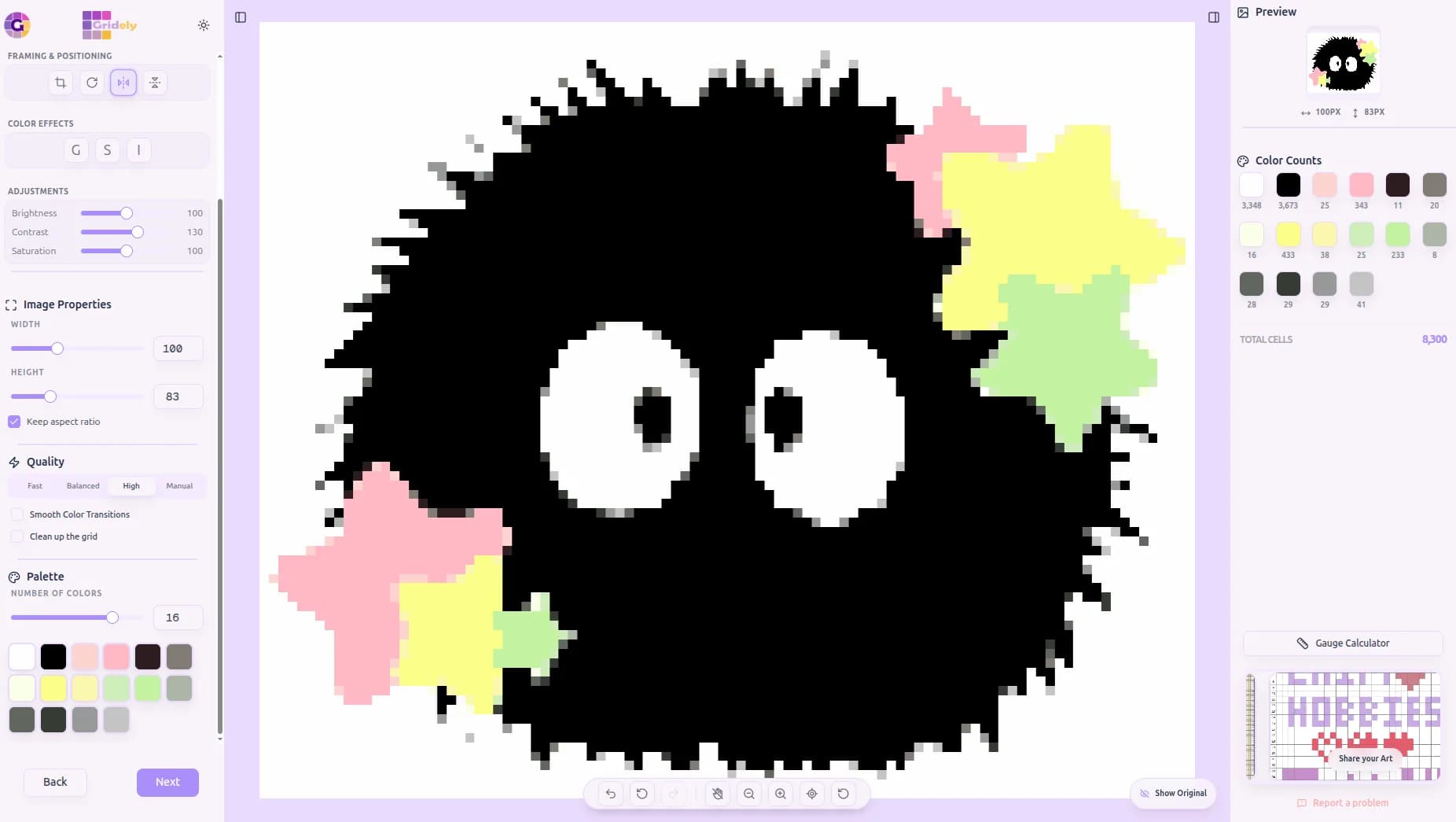
Fewer Colors, Same Charm
Simplify to a palette that's actually craftable.
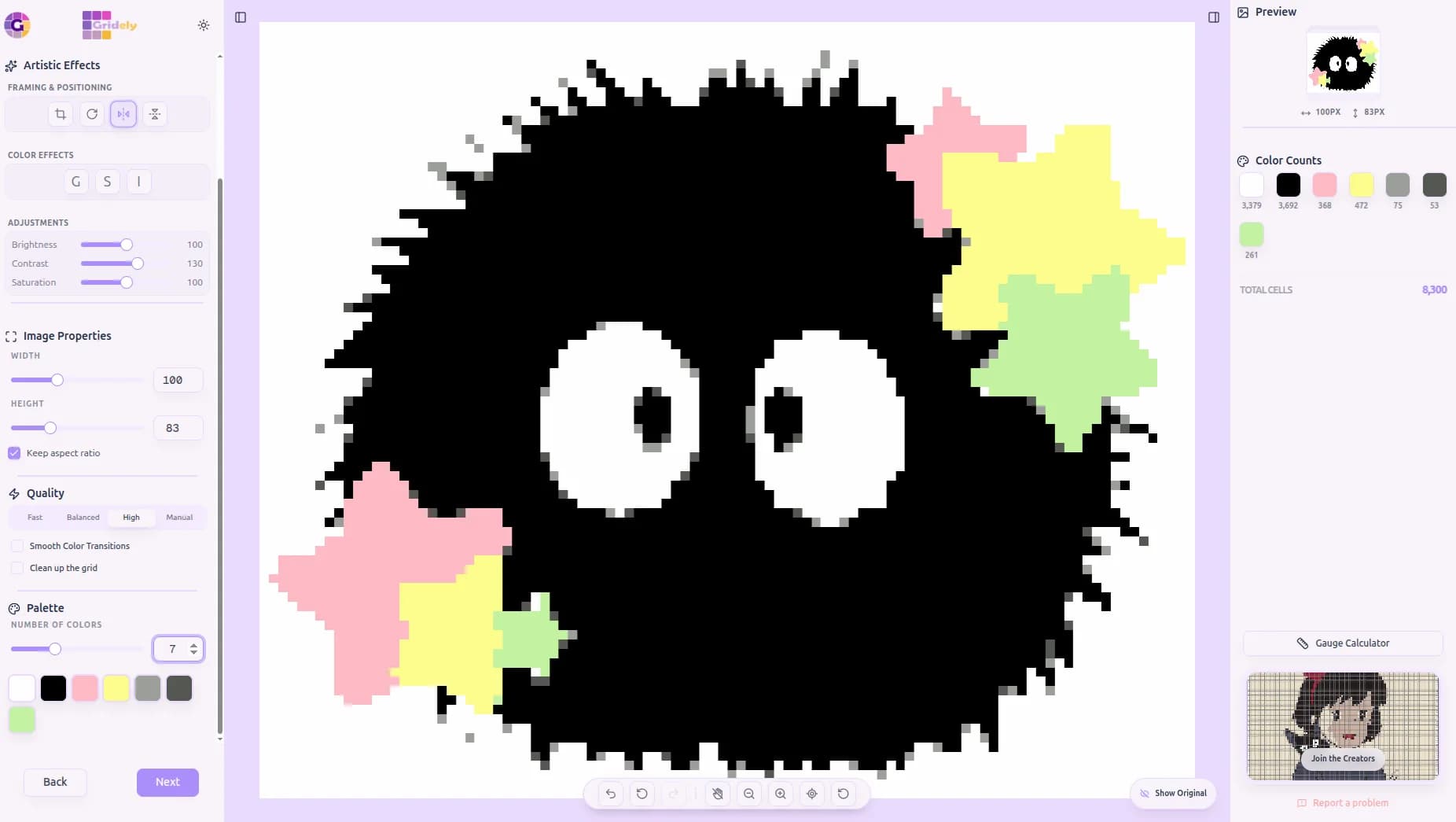
Auto-Picked Palette
Let Gridely choose the best colors for your image automatically.
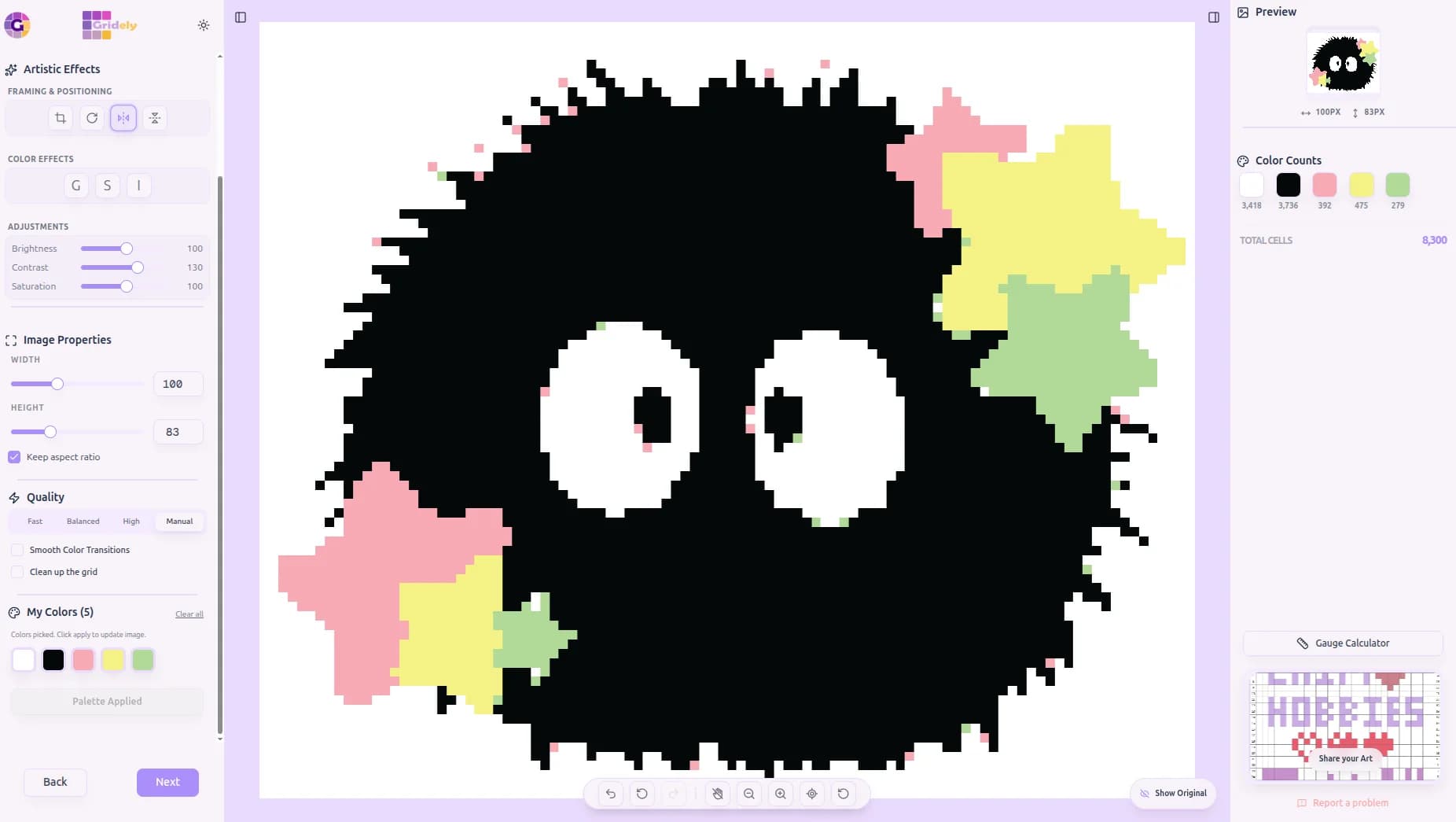
...Or Pick Every Color Yourself
Switch to Manual mode and click right on the photo to choose exact colors.
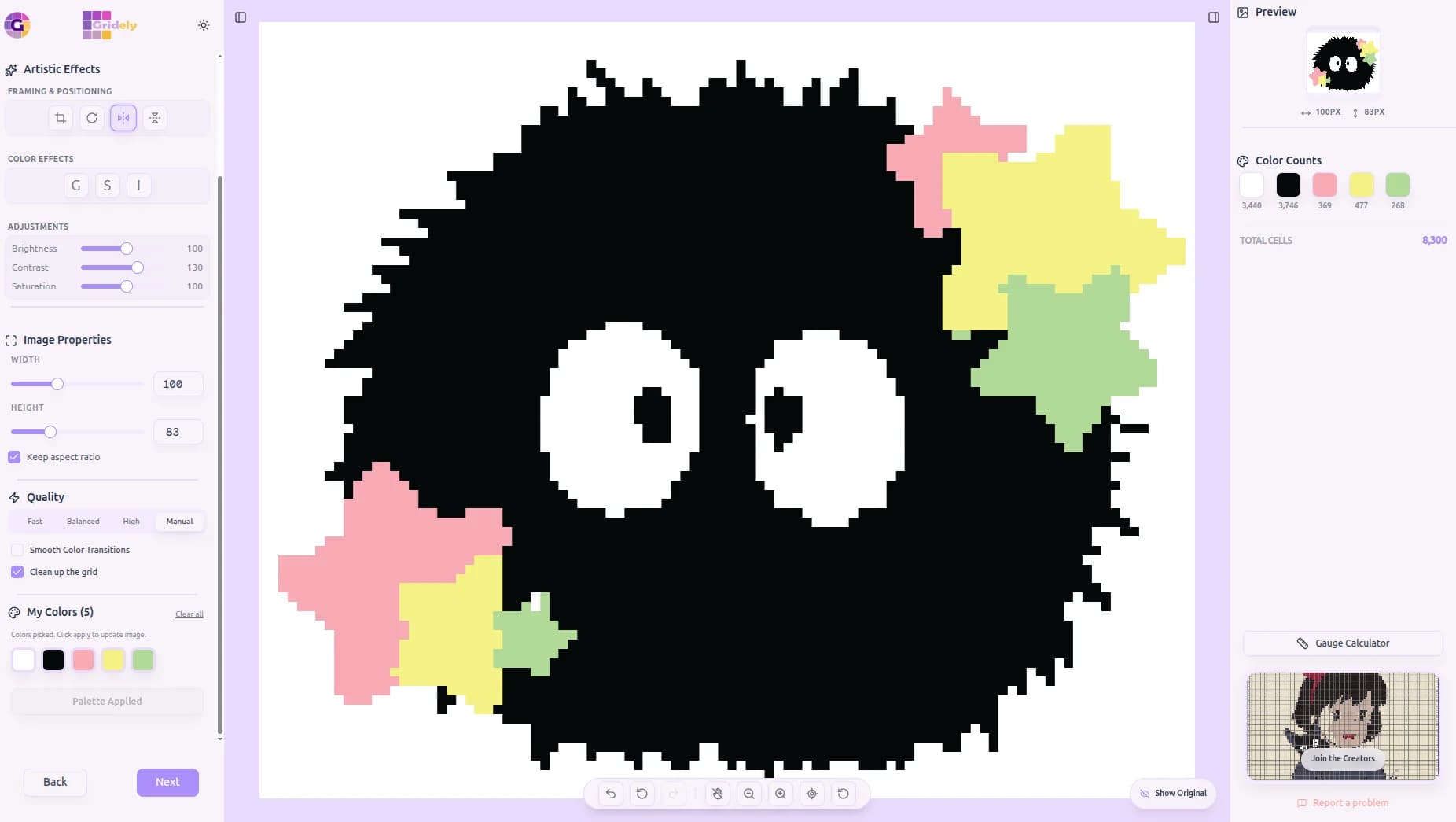
Clean Up the Noise
One click removes stray, hard-to-craft pixels before you even start editing.
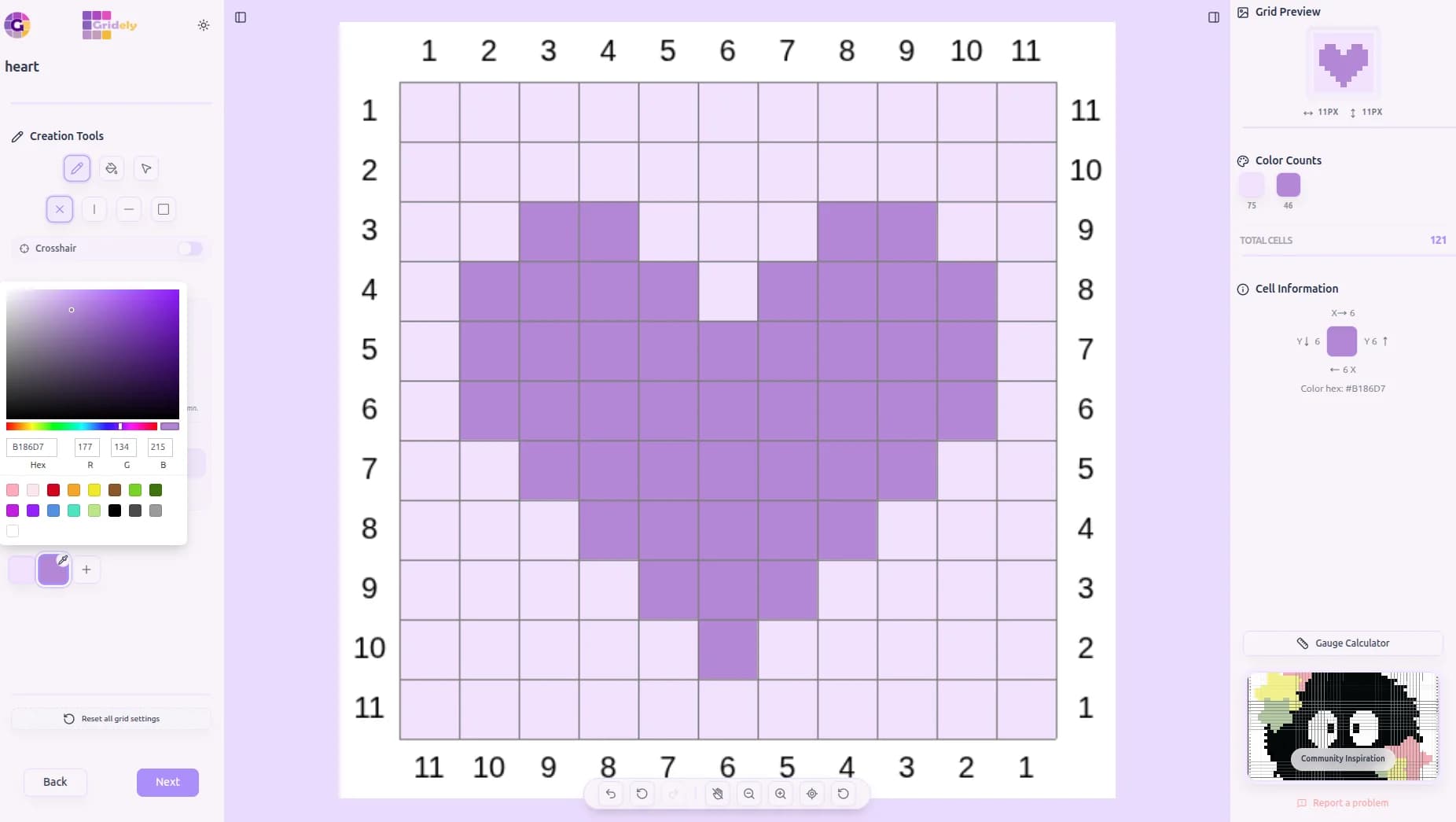
3. Design From a Blank Canvas
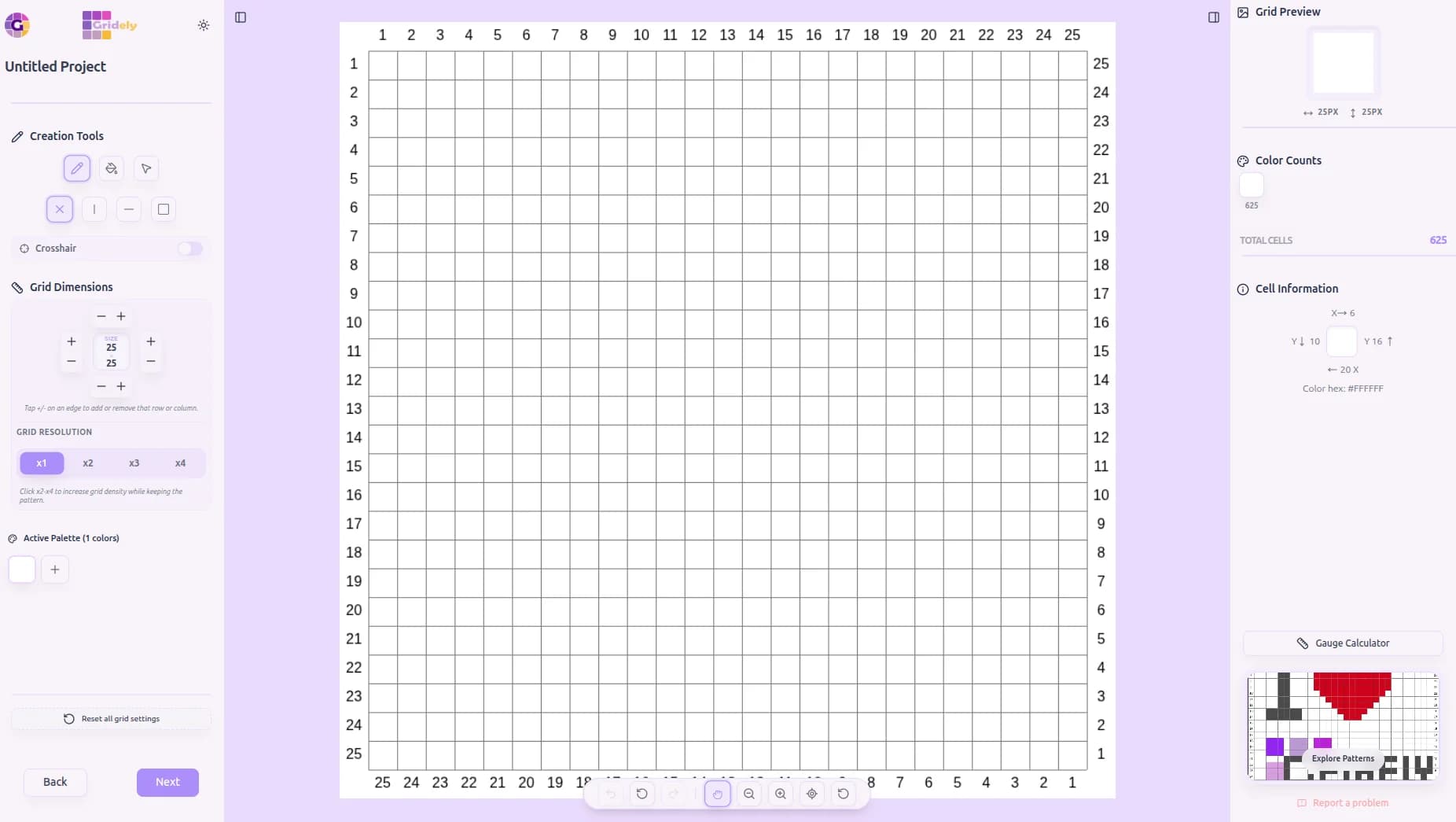
No photo, no problem. Pick your grid size and start placing stitches from square one — Gridely's tools make it easy to build something intricate without a mouse-drawn mess.
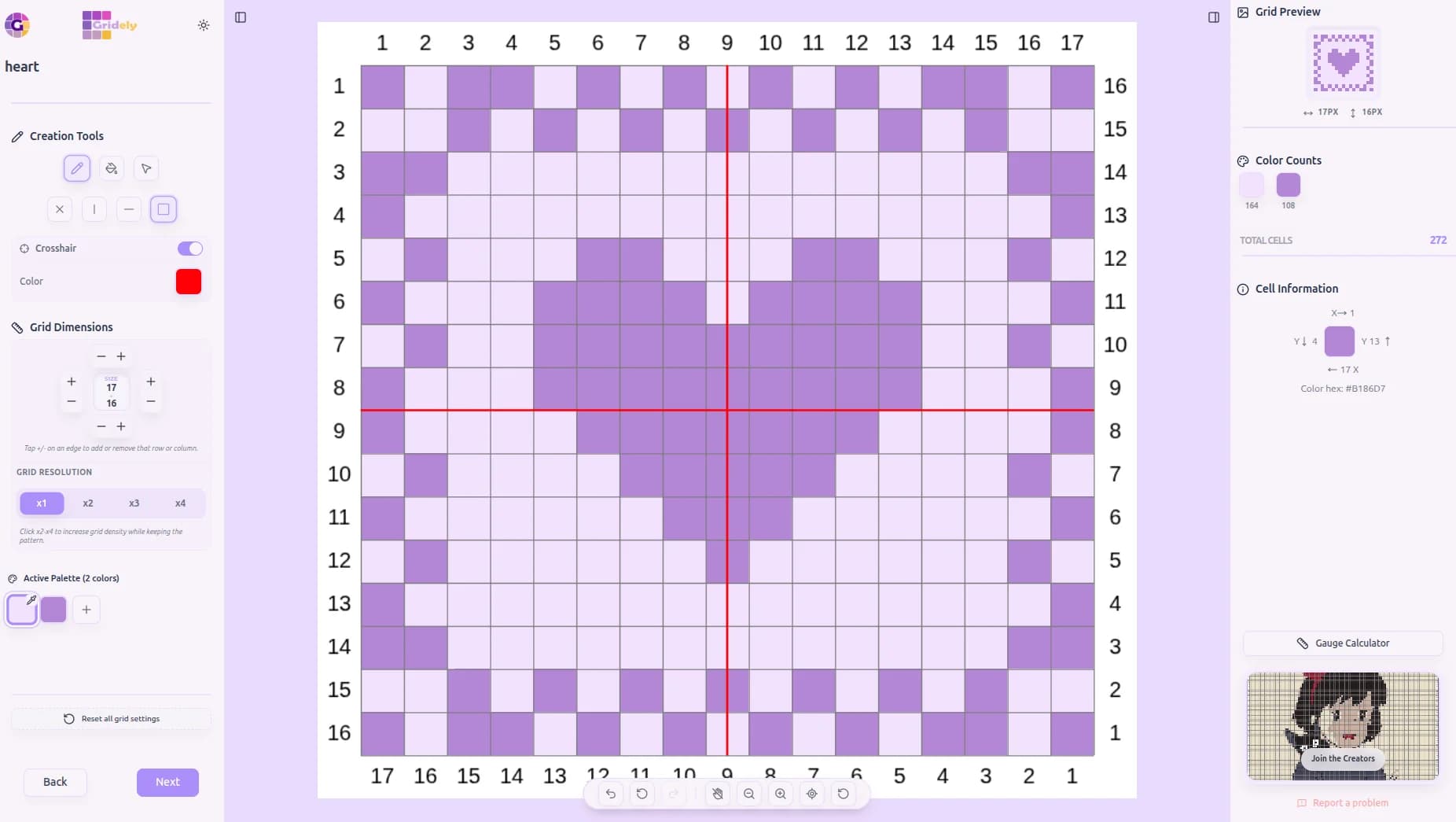
This four-leaf clover was built entirely from scratch: a symmetric sketch, a border, and a little palette cleanup along the way.
- Set any grid size and start with a fully blank canvas
- Symmetry drawing mirrors every stroke — perfect for balanced, intricate motifs
- Fill mode floods an entire enclosed area in one click
- Add rows and columns anytime to build borders and frames
- Edit any color instantly, or let Gridely merge near-duplicate shades for you
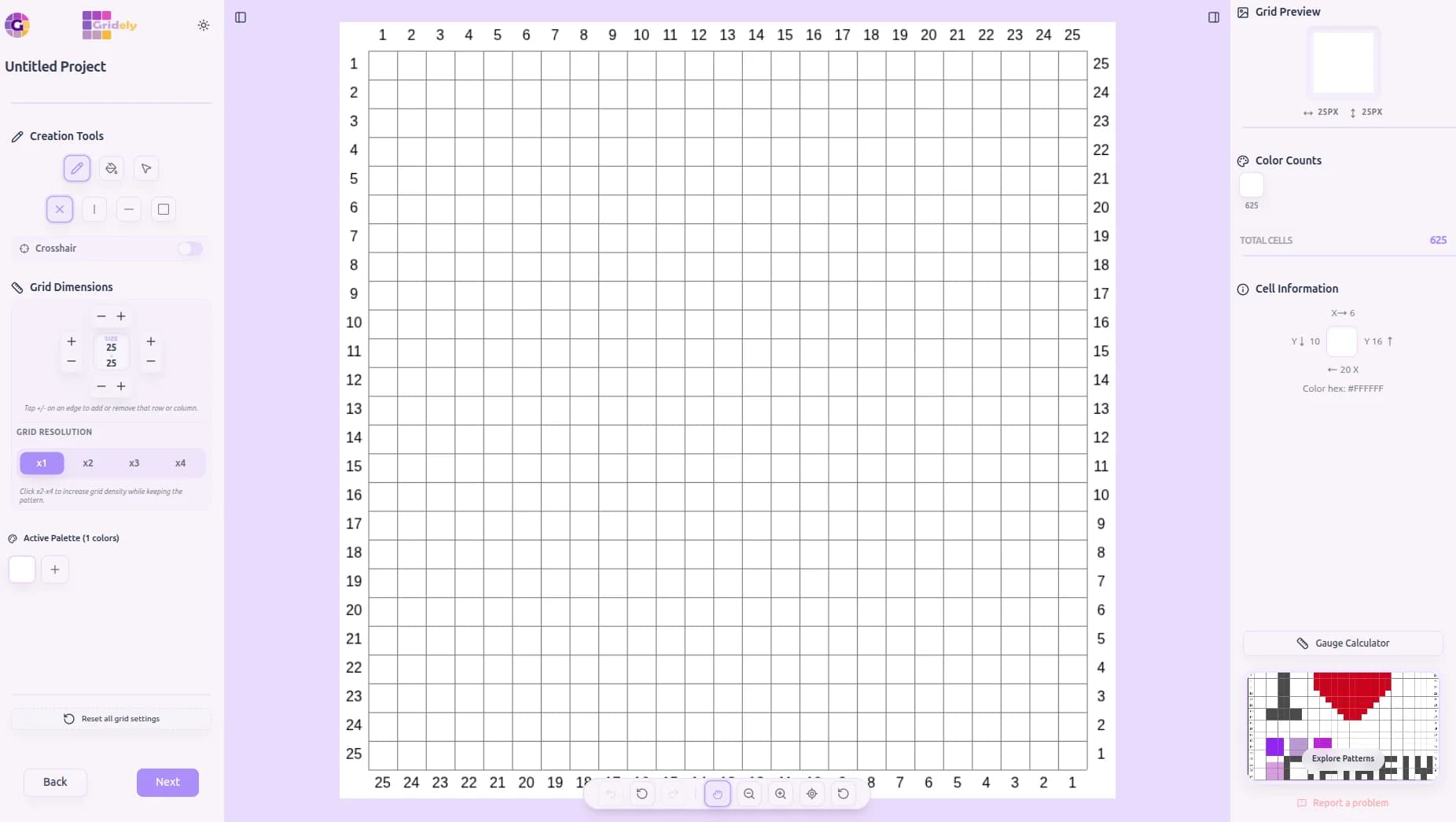
Start With a Blank Grid
Choose your size and get a clean canvas, ready to fill.
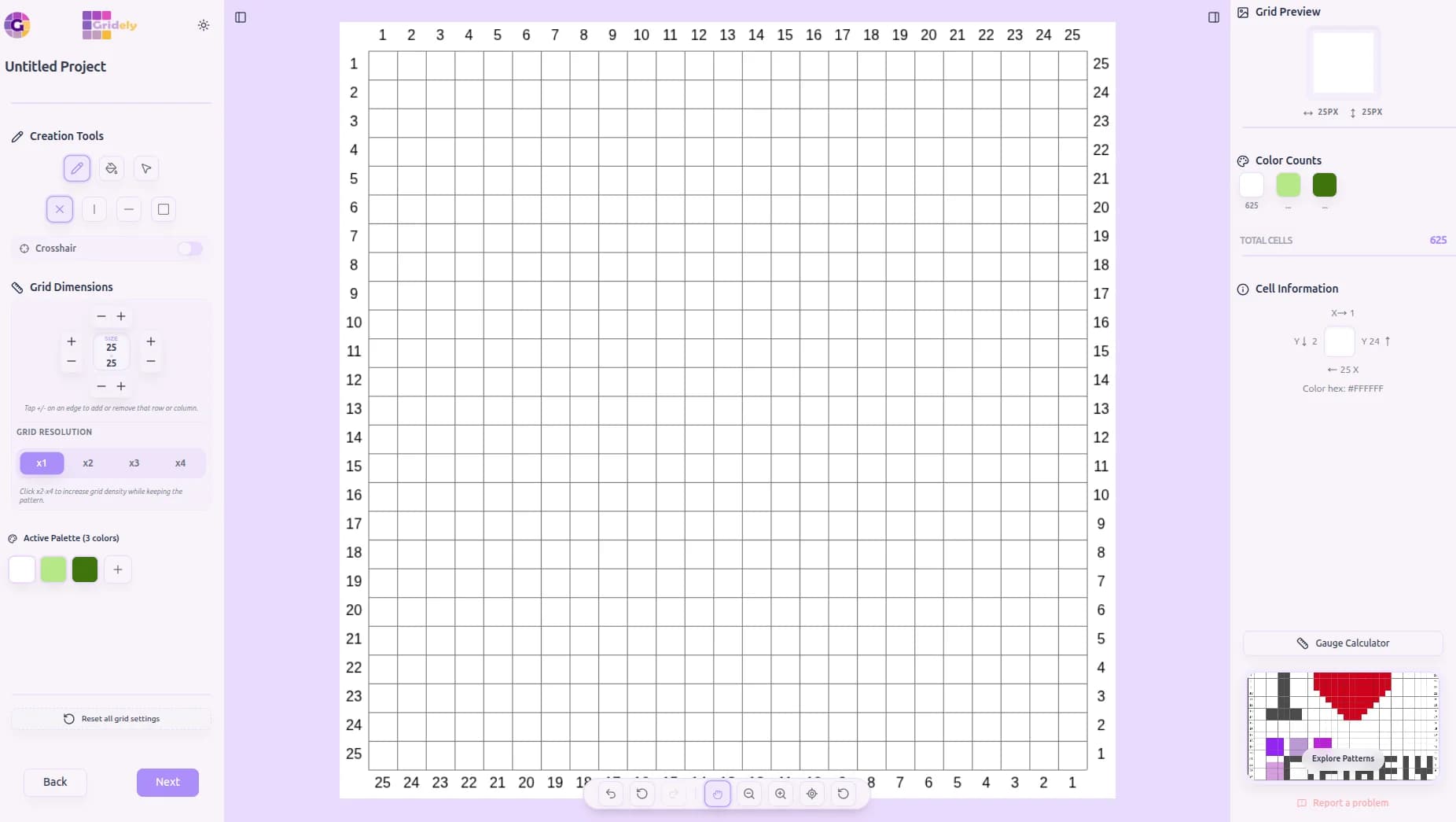
Build Your Palette
Add exactly the colors your design needs.
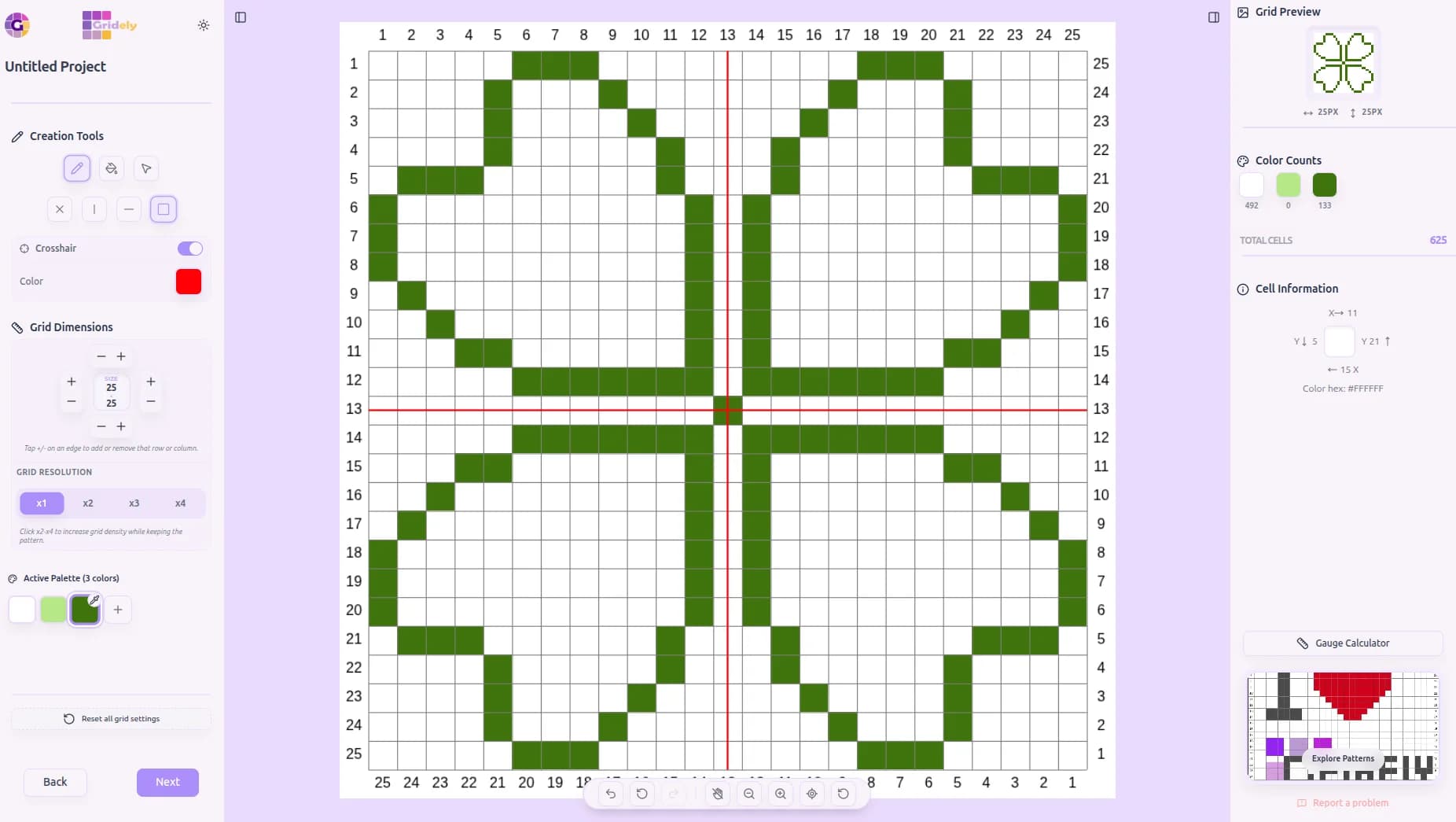
Draw With Symmetry
Turn on symmetry and every stroke mirrors automatically.
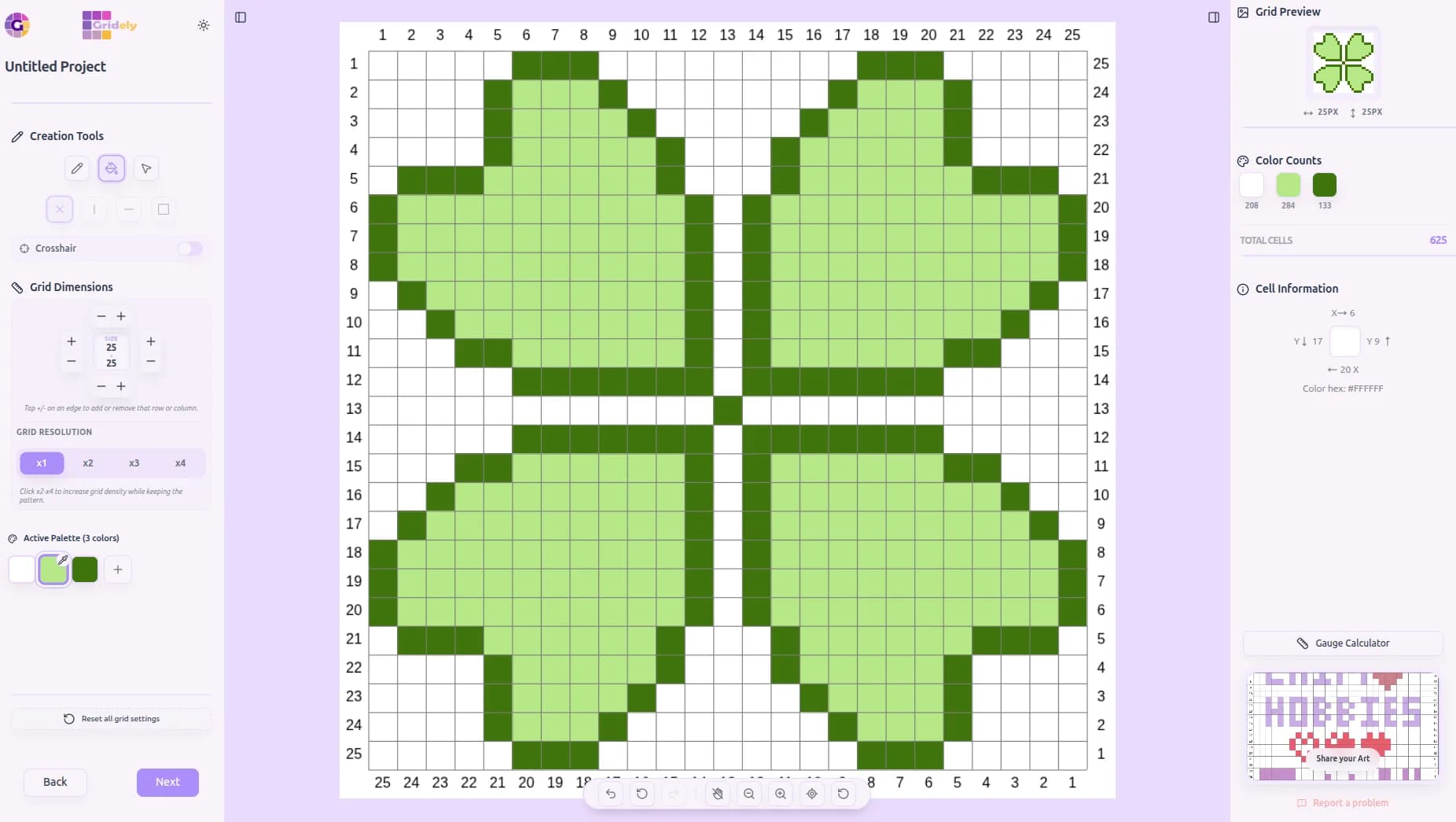
Flood Fill in One Click
Fill mode colors an entire enclosed area instantly.
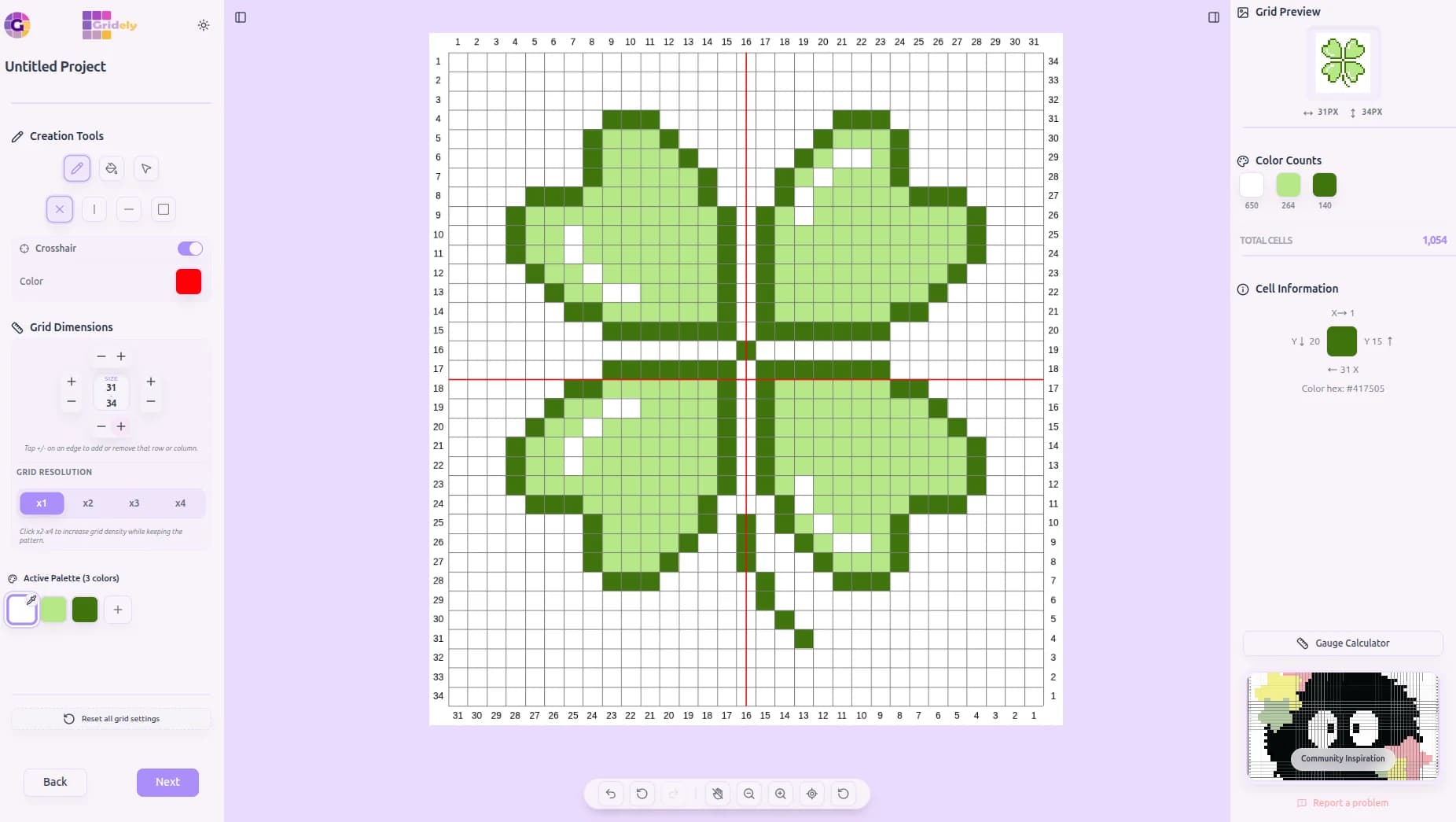
Borders on Every Side
Add rows and columns on any edge to frame your design.
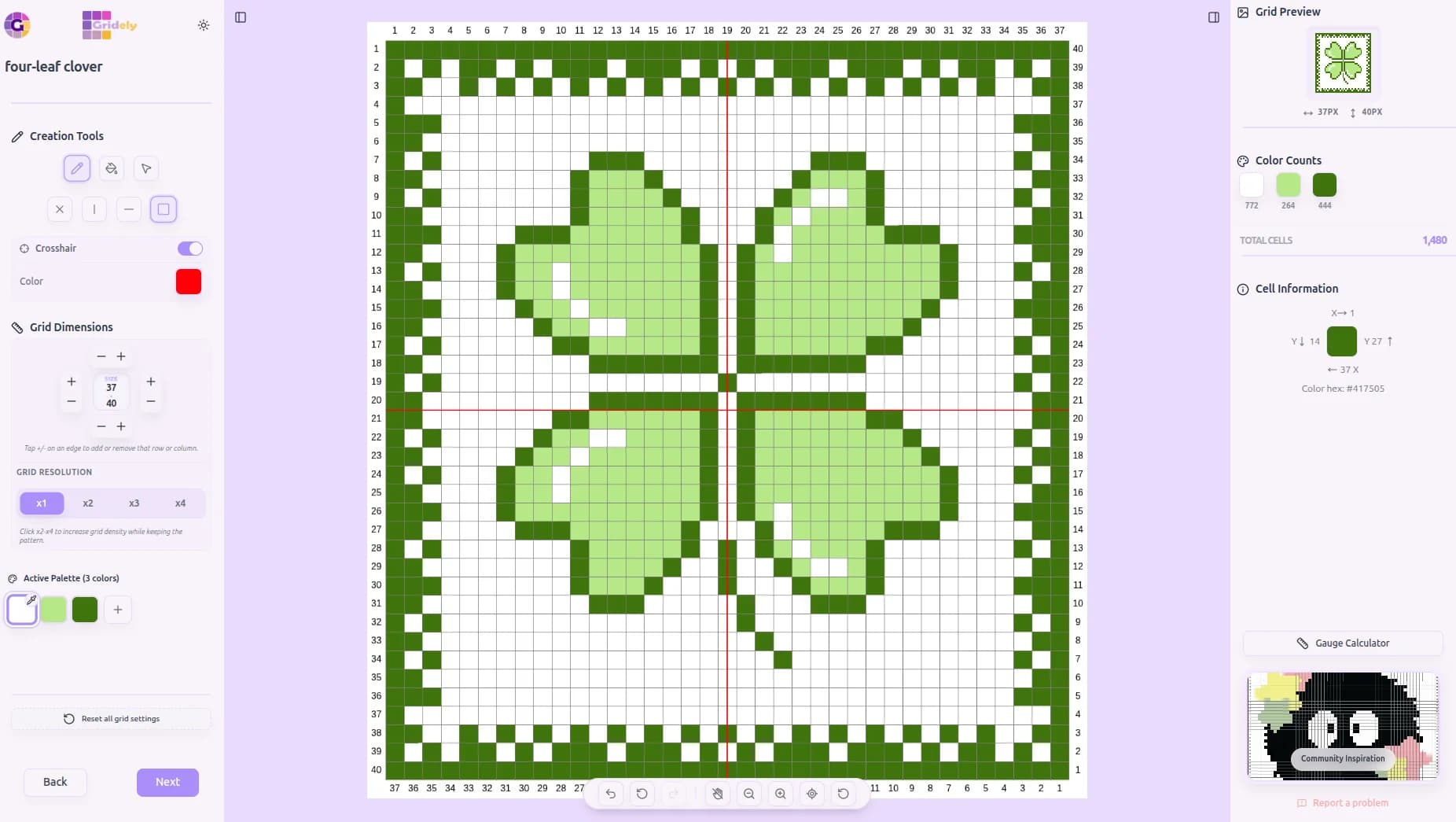
Symmetry, Again for Borders
The same mirroring trick makes even borders effortless.
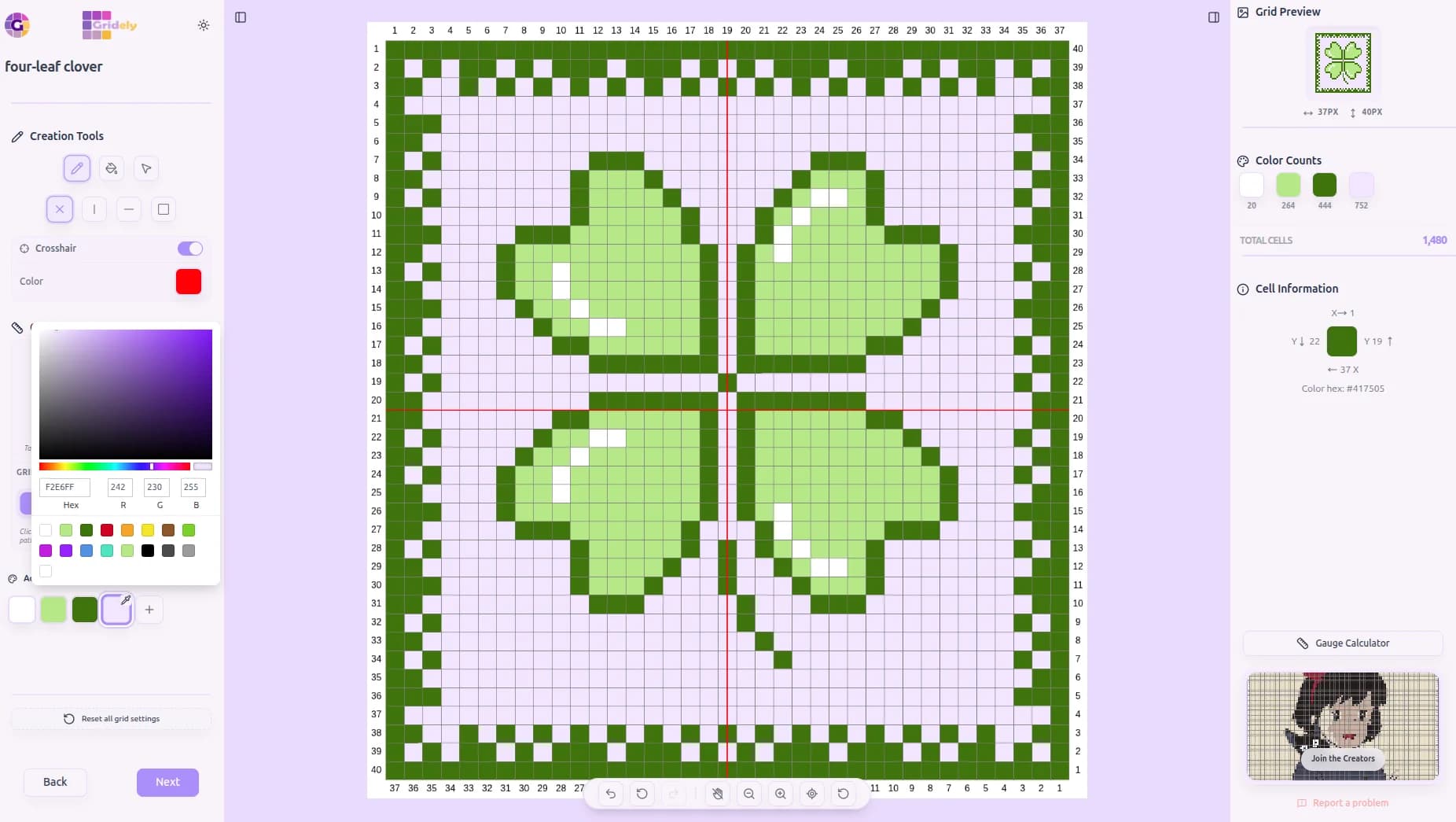
Recolor Anytime
Update any color in your palette and watch the whole design update instantly.
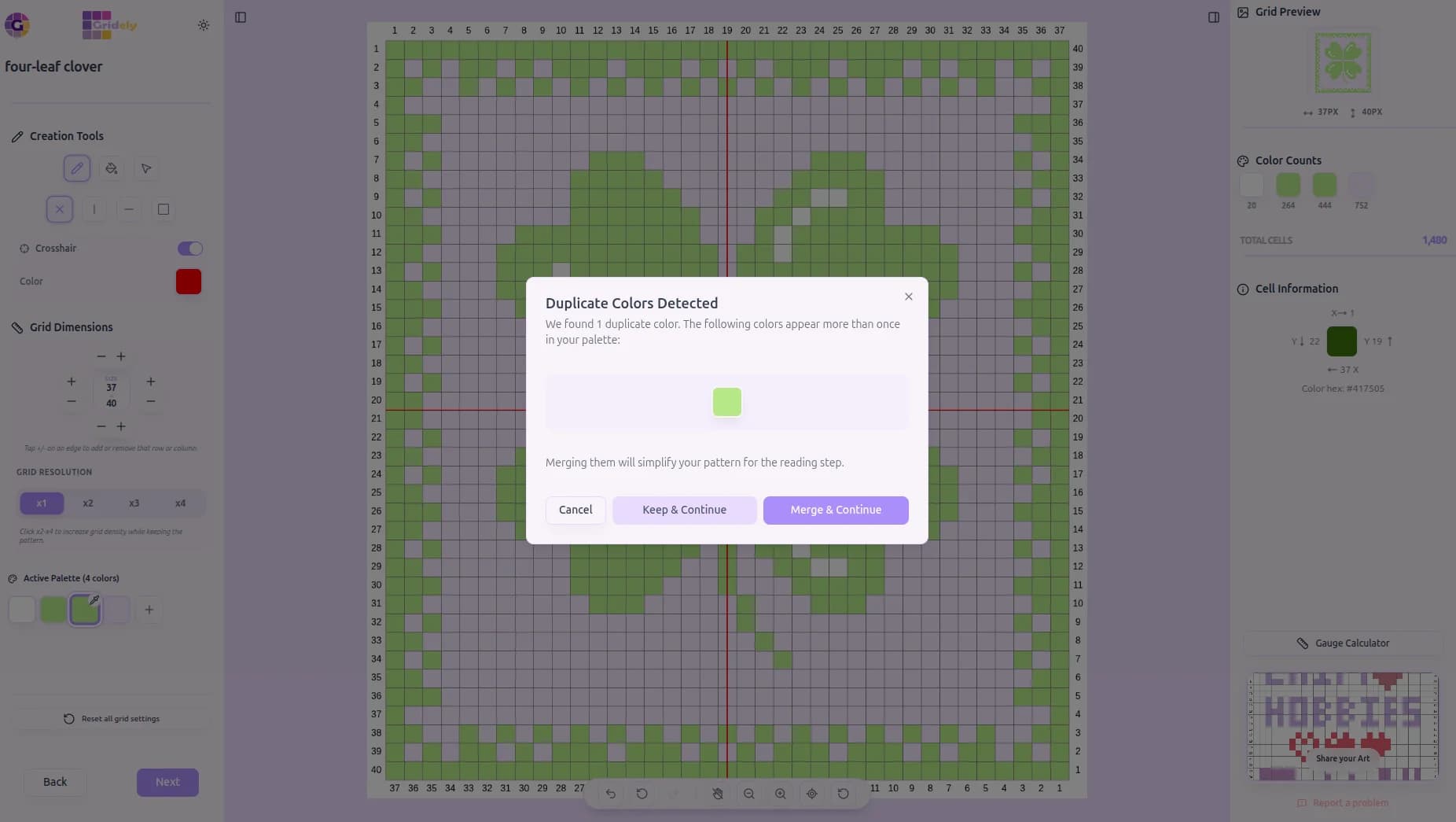
Gridely Catches Duplicates
Two colors ended up looking the same? One click merges them for you.
4. The Creative Grid Editor
Take full control of your design. Paint with the Pen or Fill tools, or select rectangular regions to copy, cut, duplicate, and move — just like a professional image editor.
The Move tool works like magic: lift a selection, drop it anywhere, drag it again as many times as you like, and Cancel always restores it exactly where it came from.
- Select, copy, cut, duplicate, and move whole regions at once
- Full keyboard shortcuts — Ctrl+C/X/V, arrow keys to nudge, and more
- Symmetry drawing mirrors your strokes vertically, horizontally, or both
- Add or remove rows and columns anytime, or upscale your grid up to 4x
- Manage your palette: add, edit, merge duplicates, or remove unused colors
- Fix mistakes instantly with unlimited undo and redo
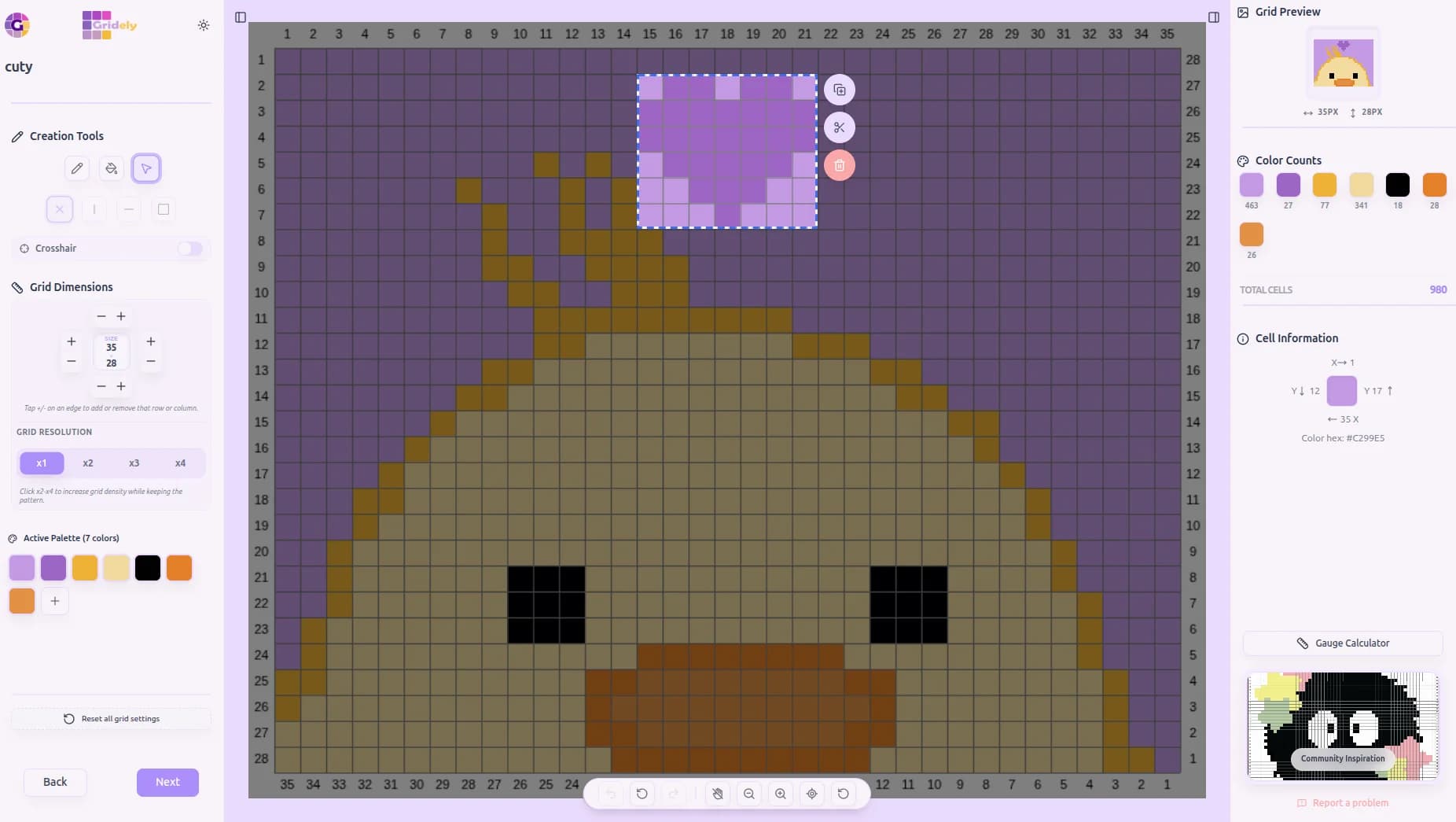
Select Any Region
Draw a selection and copy, cut, or delete it instantly.
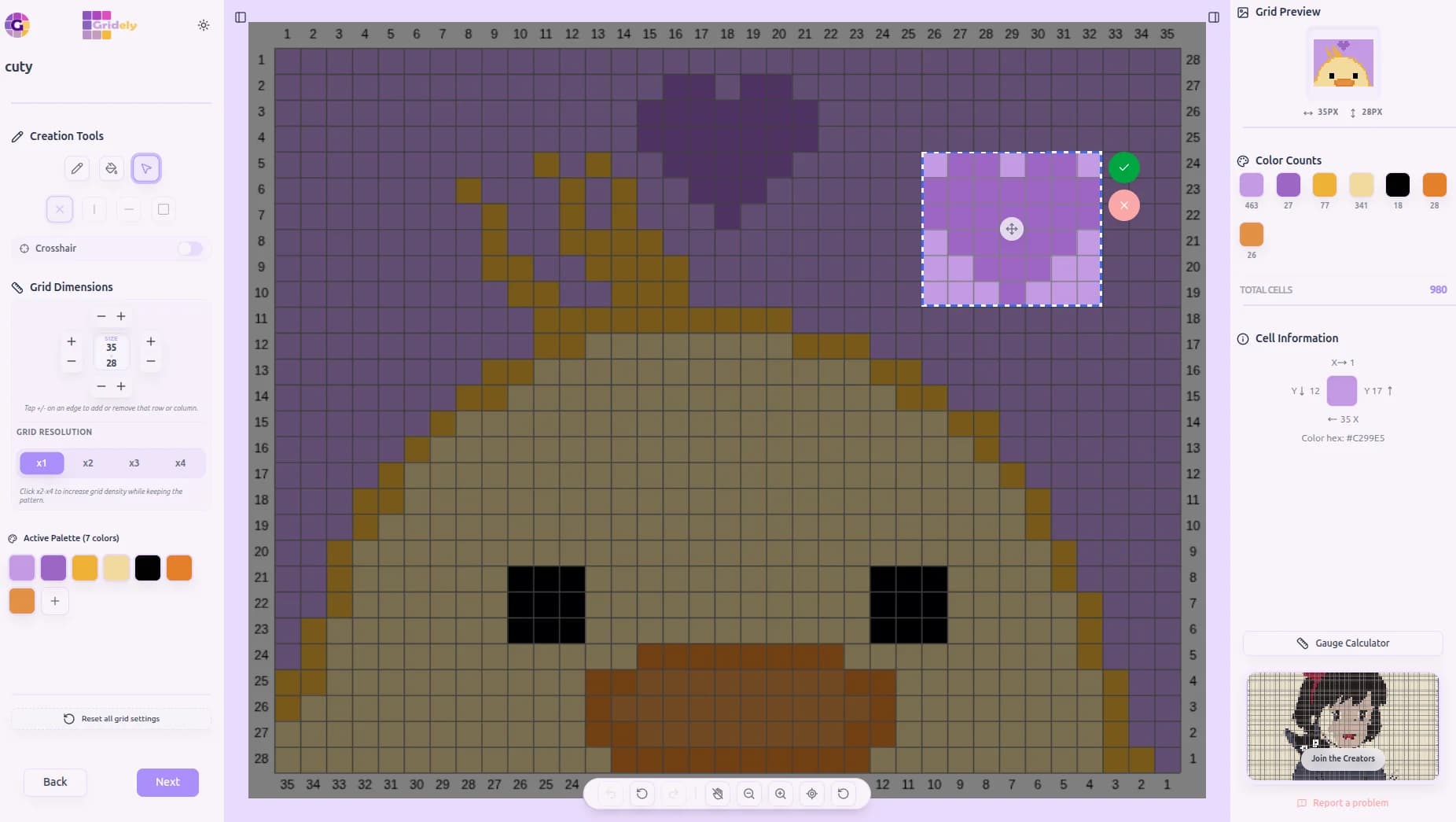
Copy & Drop Anywhere
Lift a copy of your selection and drop it wherever you like.
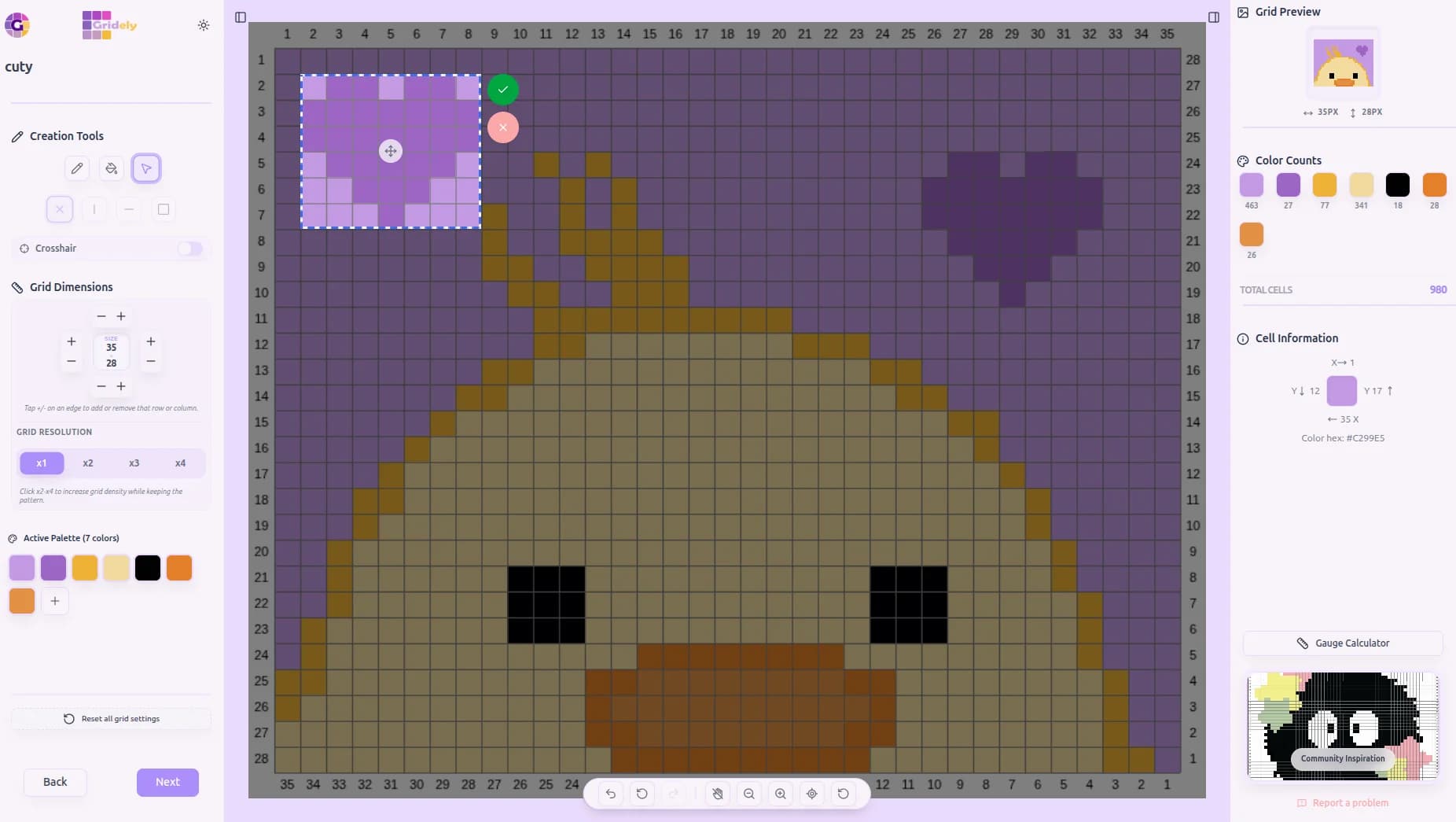
Cut, Move, Repeat
Cut a selection and drag it to a new spot, as many times as you want.
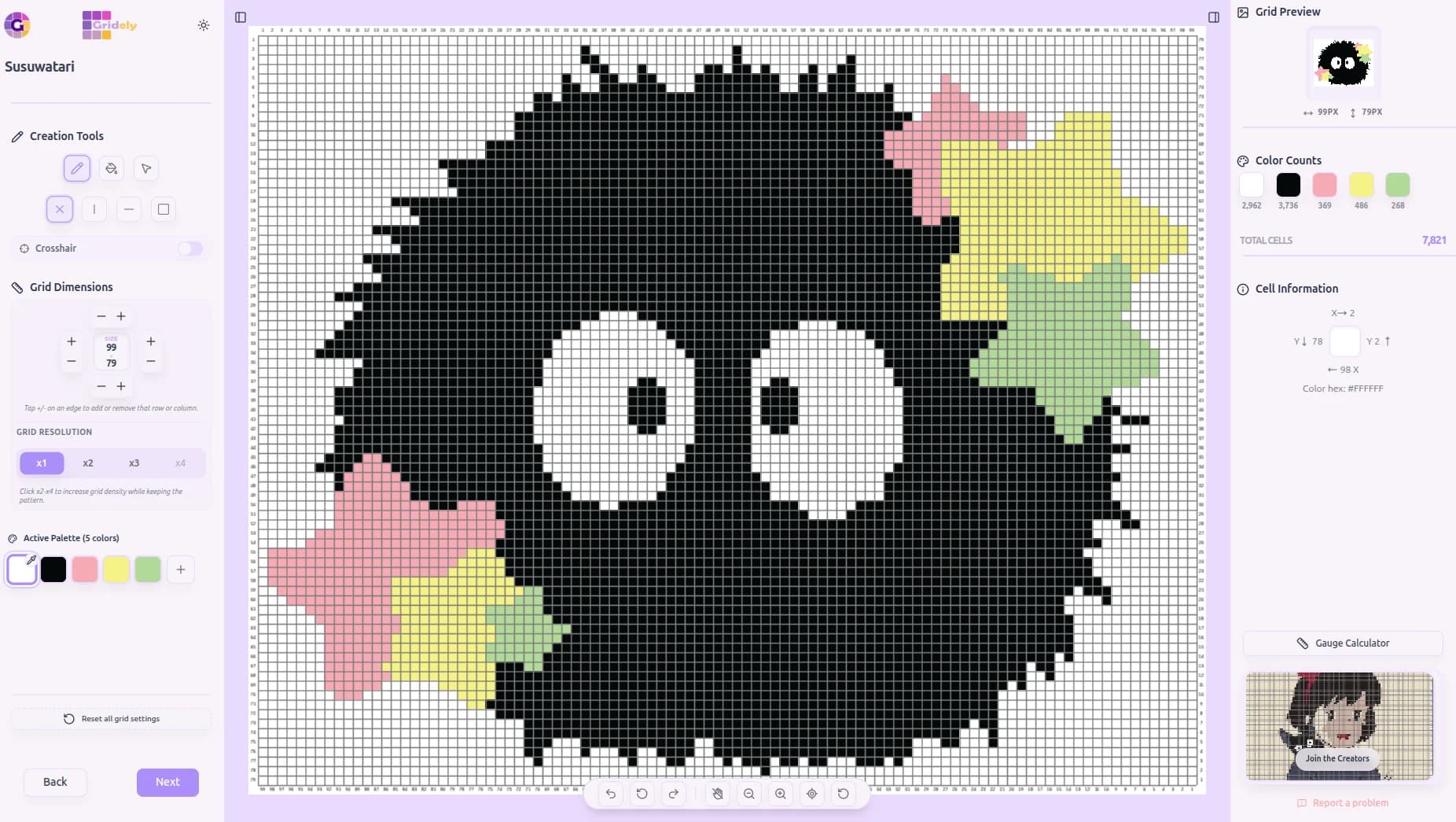
Fix Every Pixel
Zoom in and touch up individual cells with pinpoint precision.
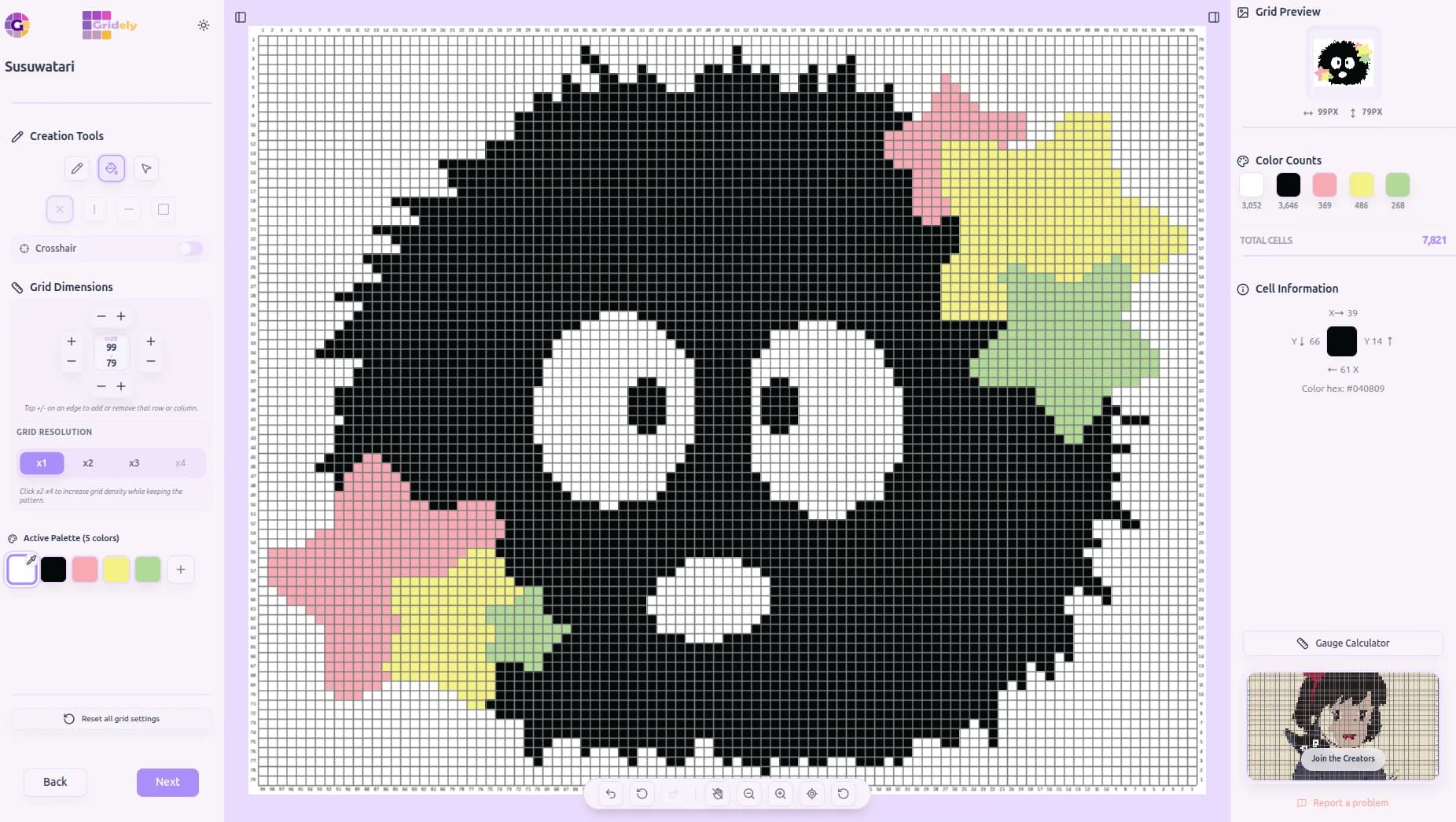
Paint Freely
Add new details with the Fill tool, however small.
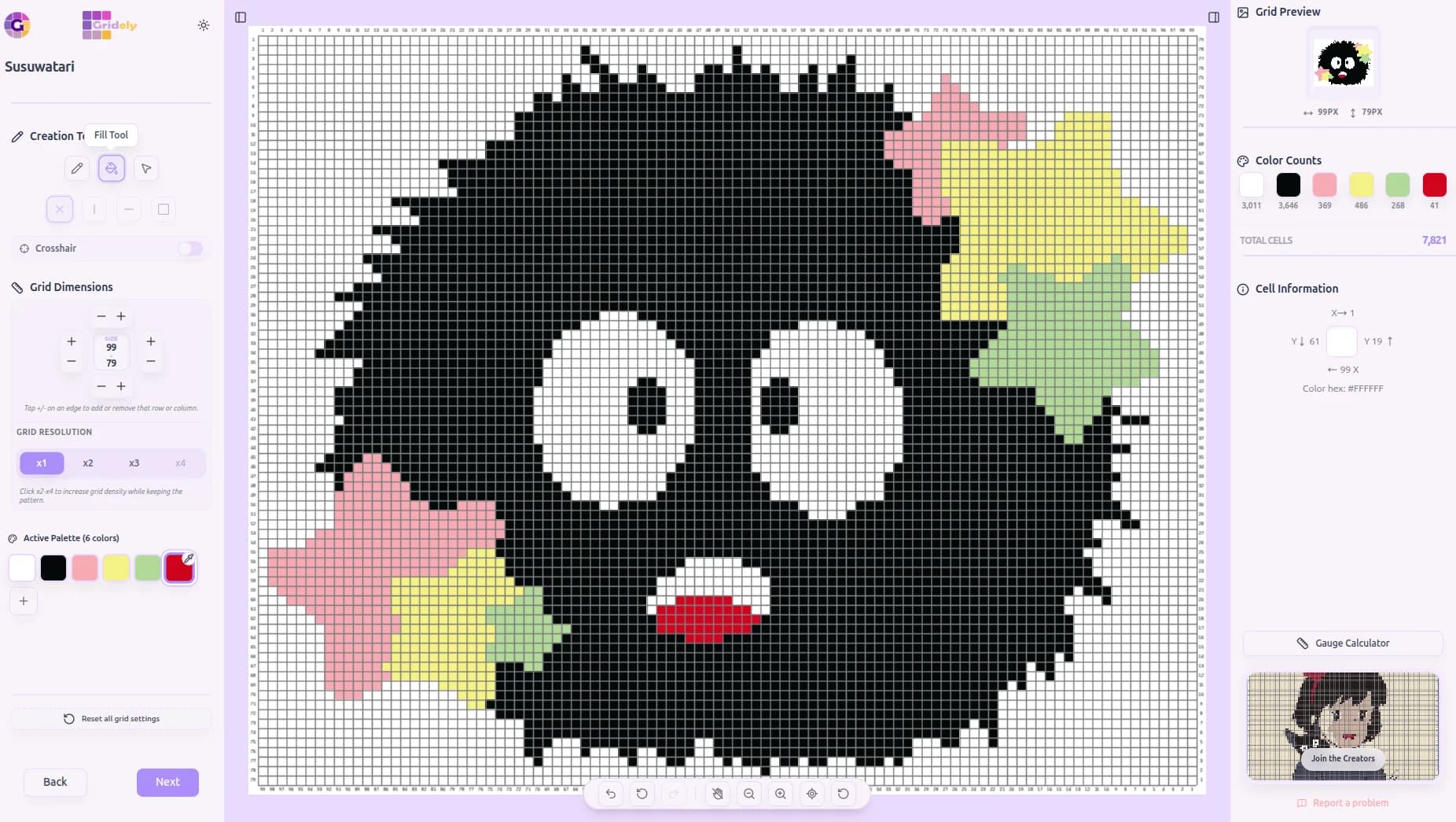
Grow Your Palette
Add a brand-new color and put it to work instantly.
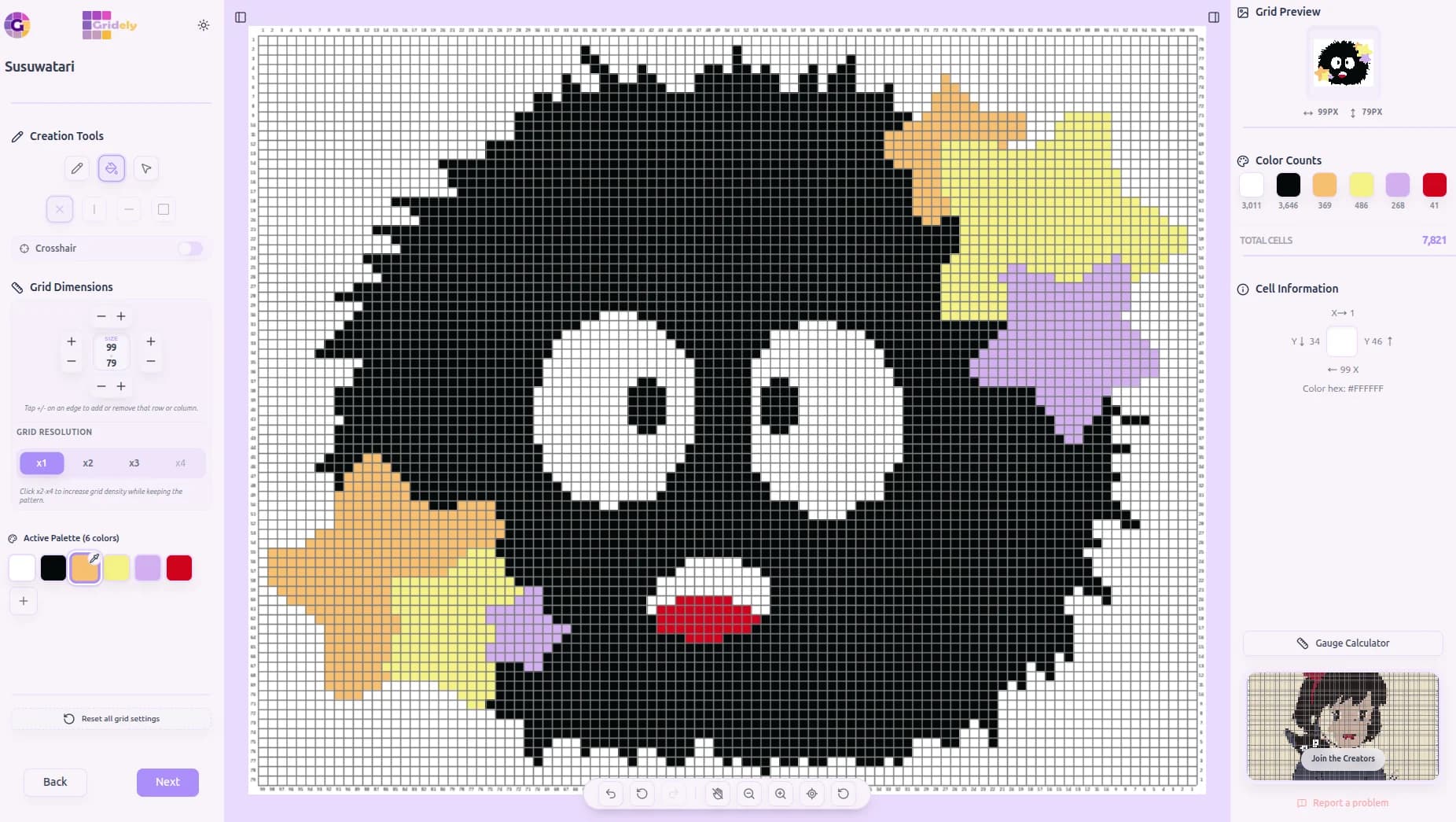
Recolor Anything
Swap any color across the whole design in a single click.
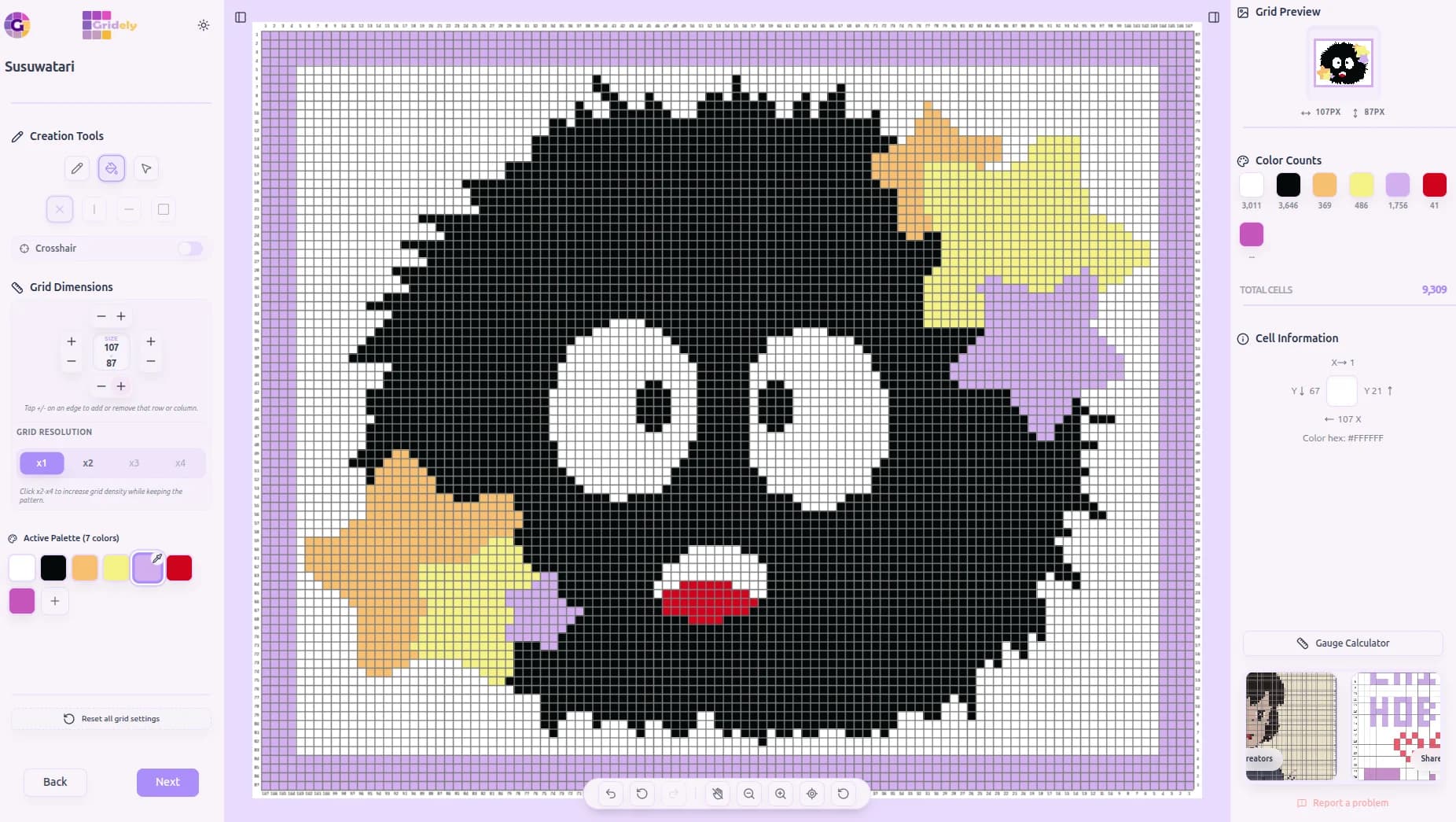
Frame Your Design
Add rows and columns to build a border around your artwork.
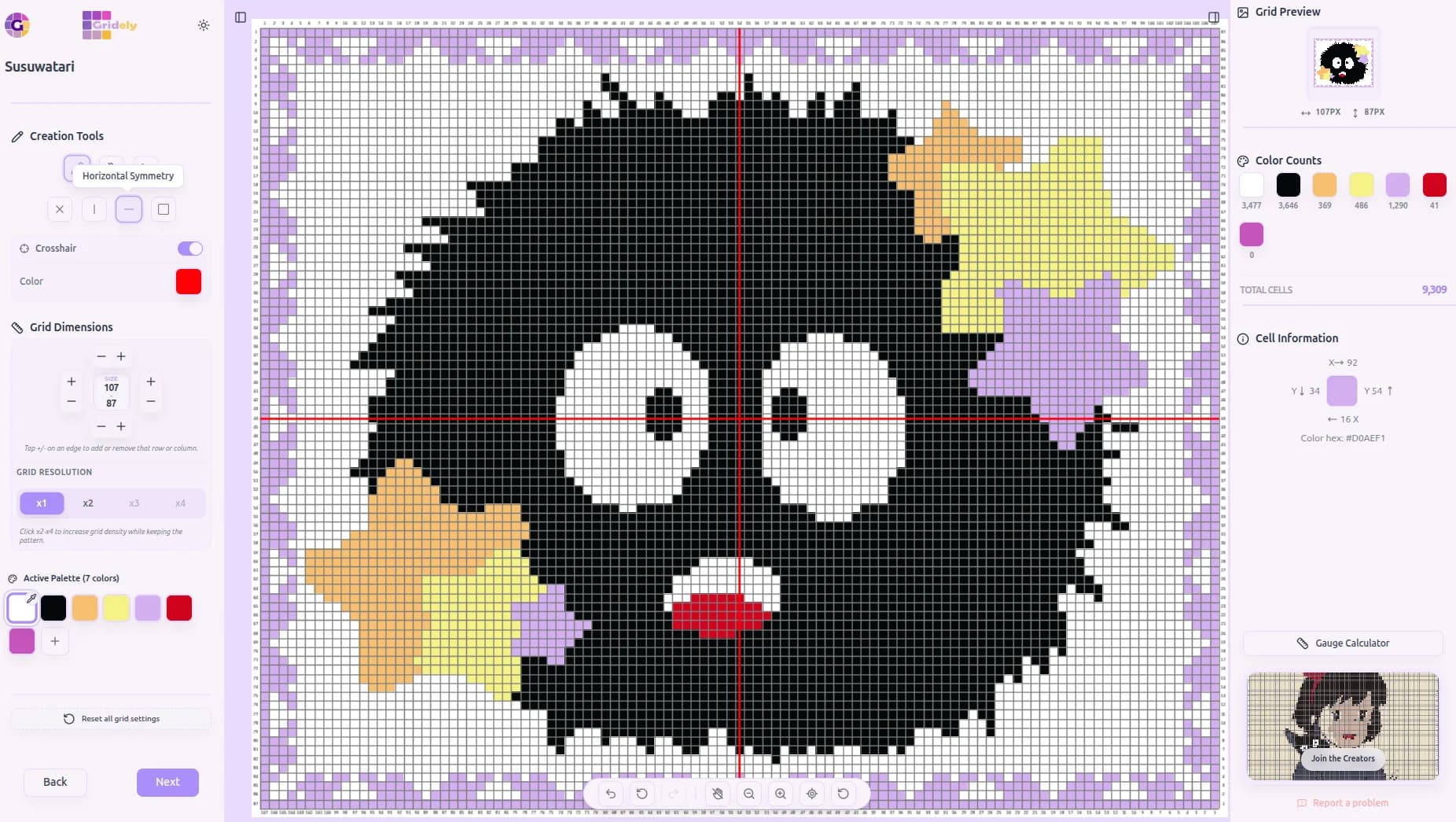
Symmetry for Borders
Mirror your border pattern automatically as you draw.
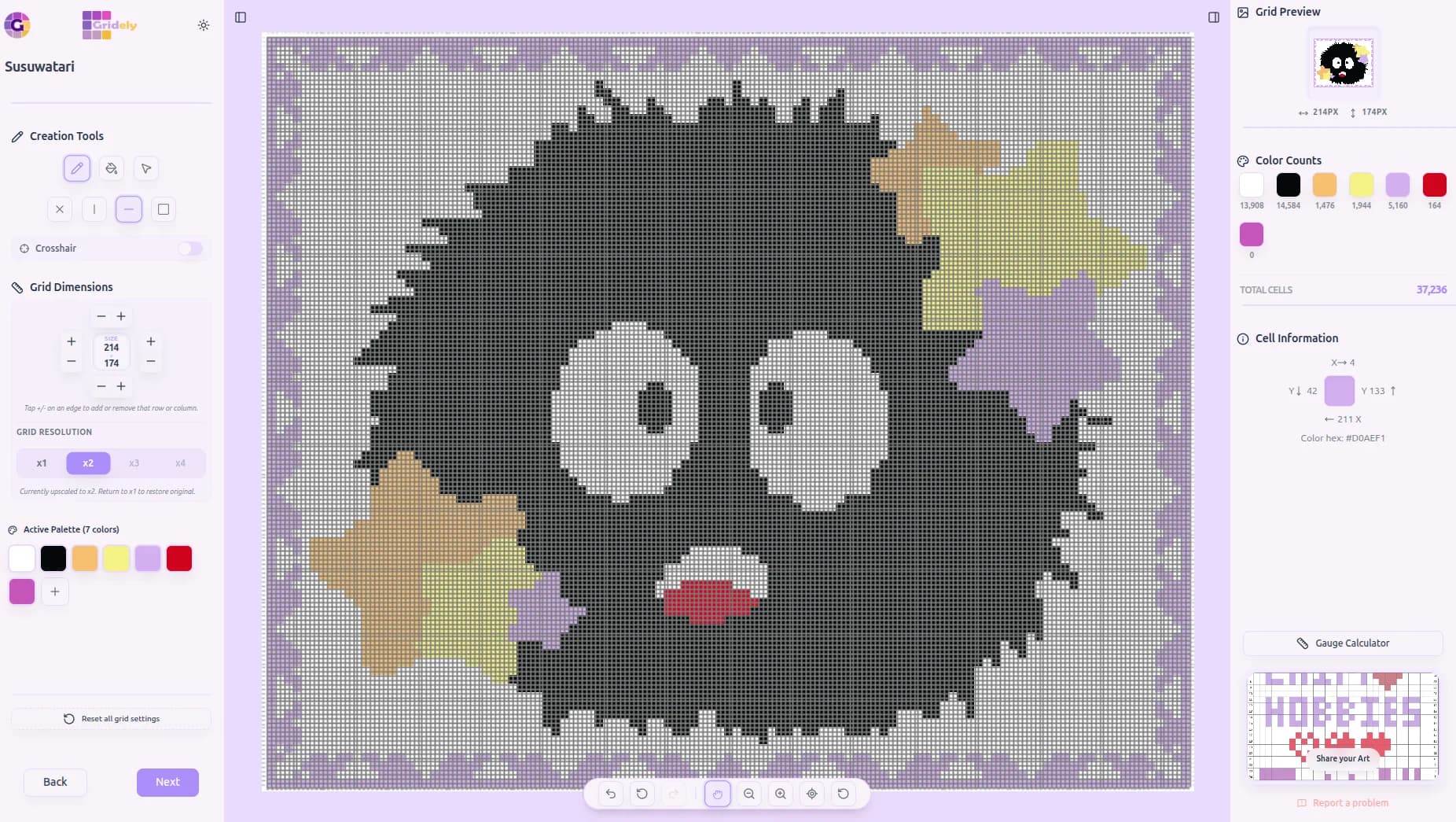
Want It Bigger?
Upscale your whole grid up to 4x while keeping the exact same design.
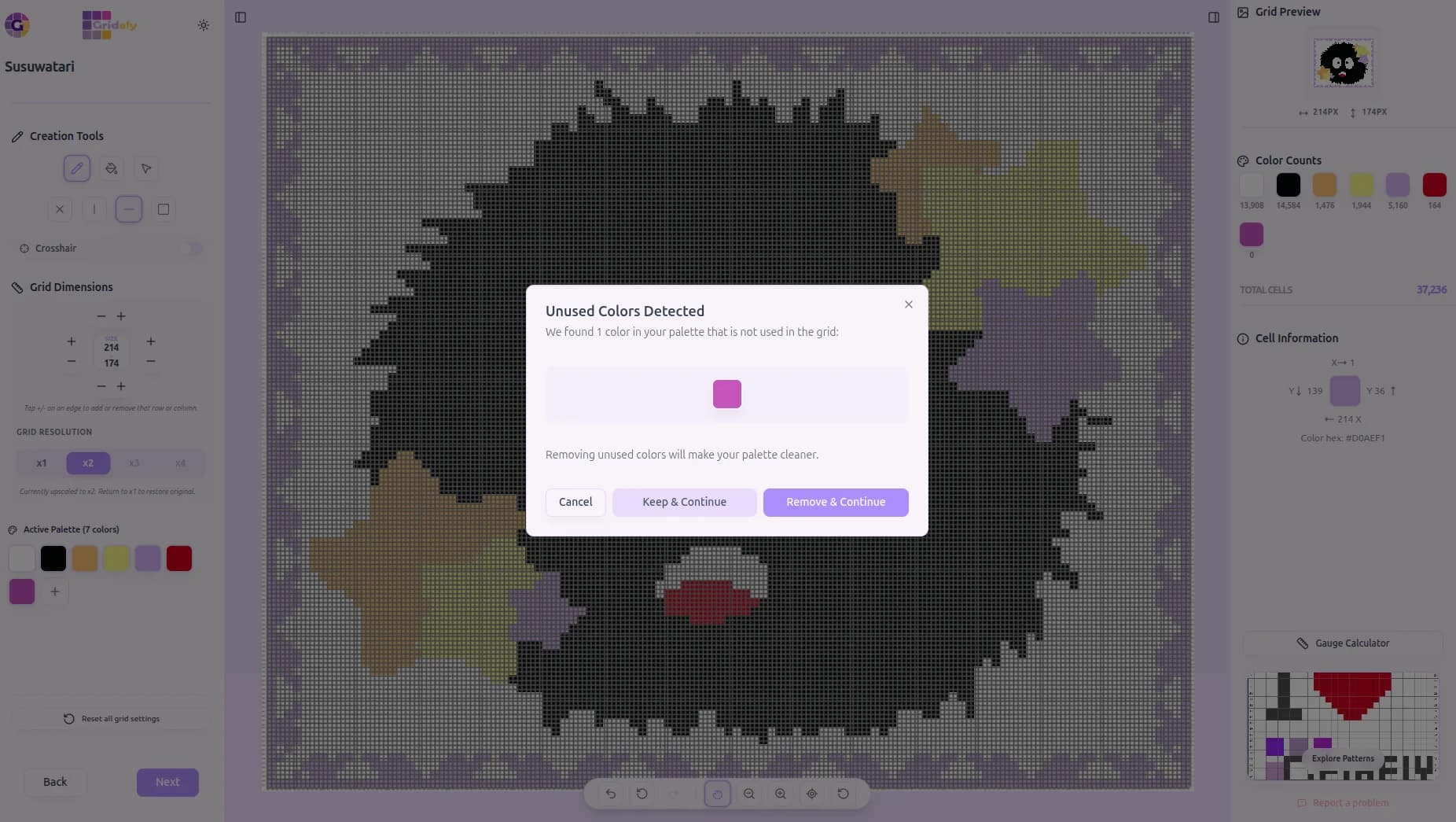
Gridely Keeps It Tidy
Unused colors in your palette? We'll flag them so you can clean up in one click.
5. Smart Pattern Reader
Focus on your craft without losing your place. Our smart reader guides you through the pattern step-by-step, making complex projects feel easy.
Choose how you read the grid — including corner-to-corner (C2C) for crochet — isolate a single color to follow, and turn on Focus Mode to let the camera auto-zoom to exactly where you are.
- 16 reading modes, including zigzag, straight rows/columns, and C2C
- 6 cell shapes — squares, circles, or four triangle orientations
- Single Color View isolates one color to follow across the whole pattern
- Choose your overlay: highlight what's current, dim what's left, or dim what's done
- Focus Mode auto-zooms and pans to your current spot, hands-free
- Live progress percentage means you never lose your place
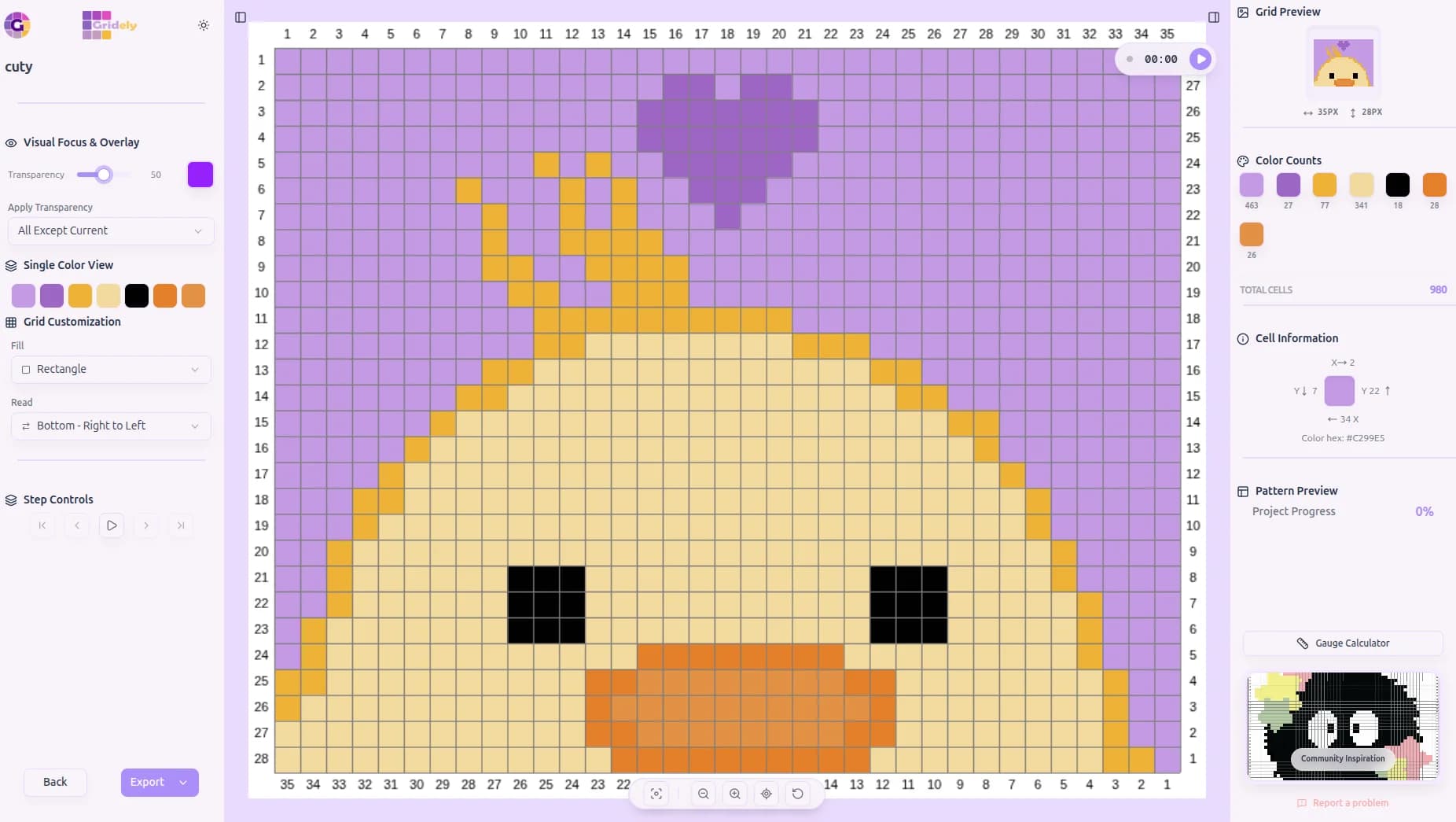
Follow Step by Step
The reader highlights exactly where you are, cell by cell.
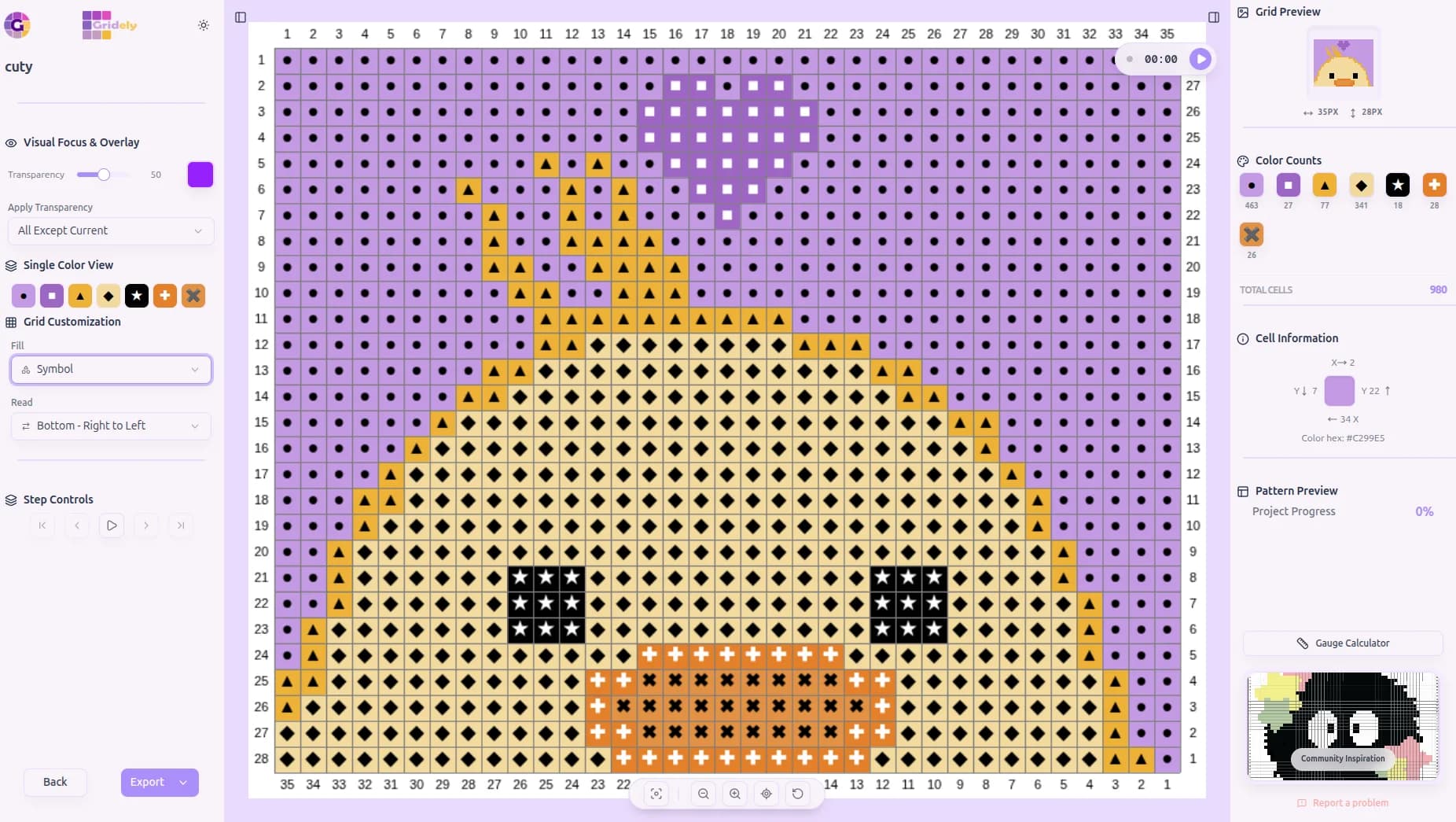
Cross-Stitch Symbol Charts
Read your pattern as classic chart symbols, not just flat color.
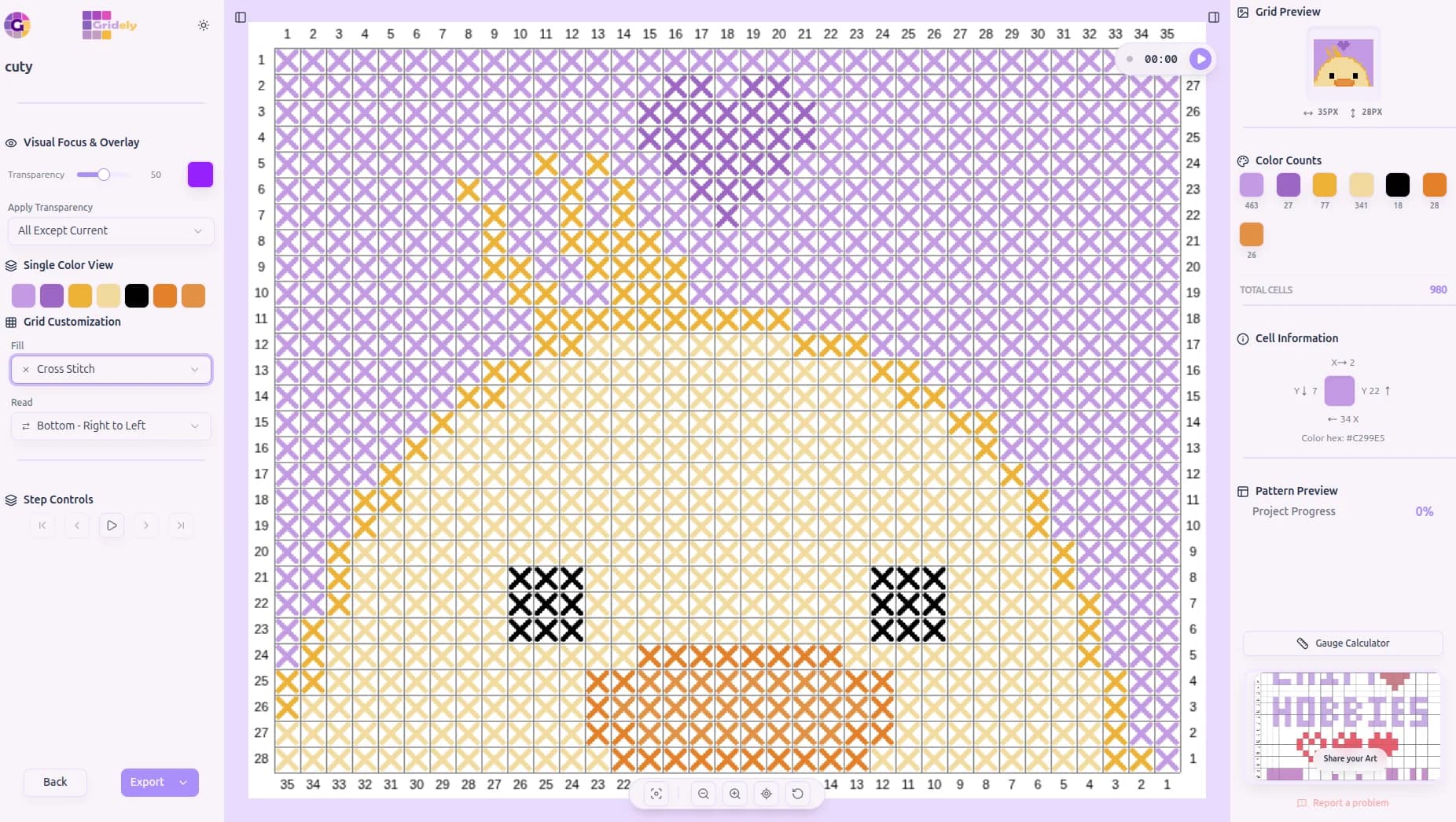
Classic Cross Stitch View
Every stitch rendered as a real cross-stitch X.
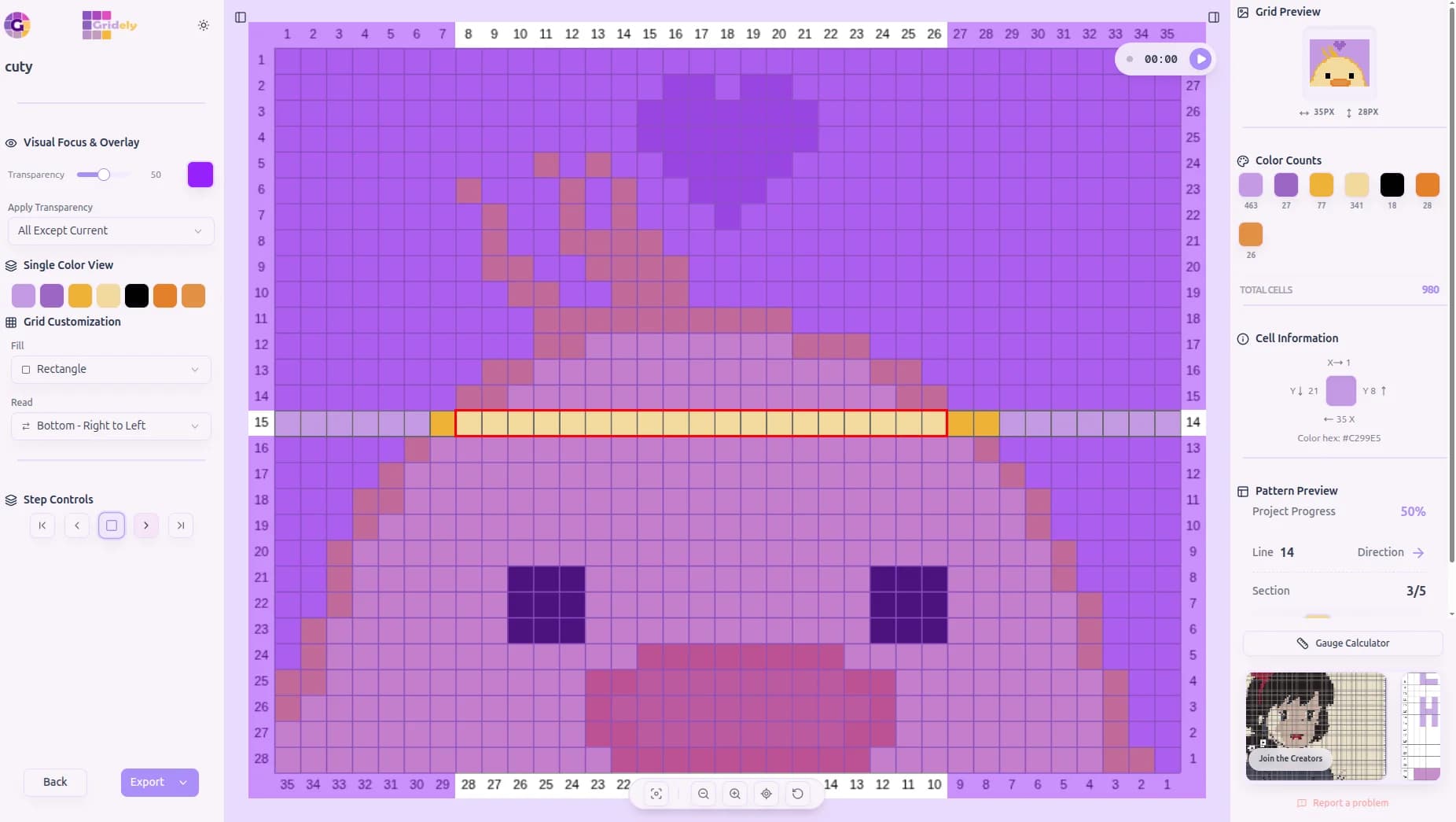
Read Any Direction
Zigzag, straight rows or columns — pick the flow that matches your craft.
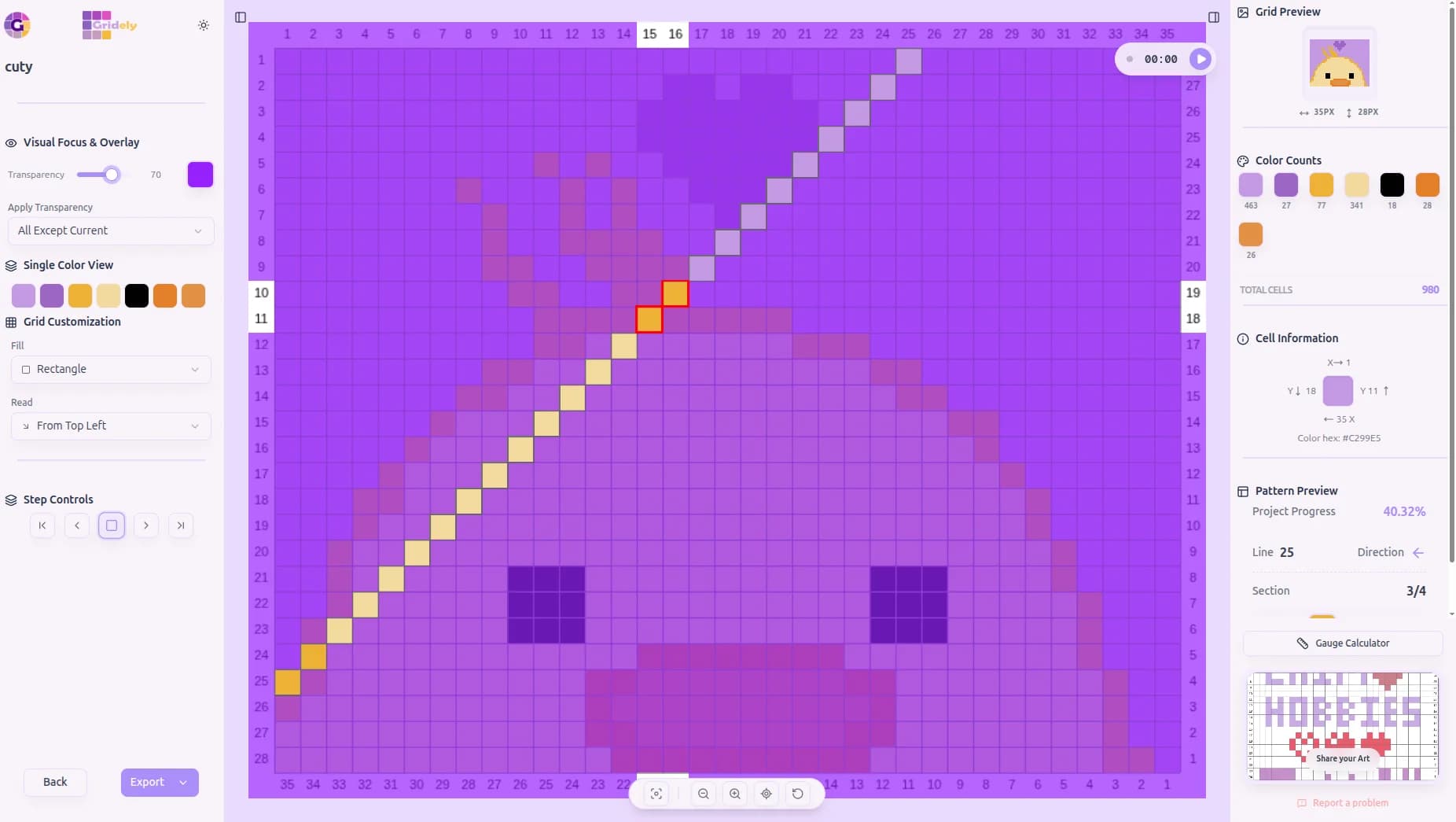
Corner-to-Corner for Crochet
Built-in C2C reading order, diagonal by diagonal.
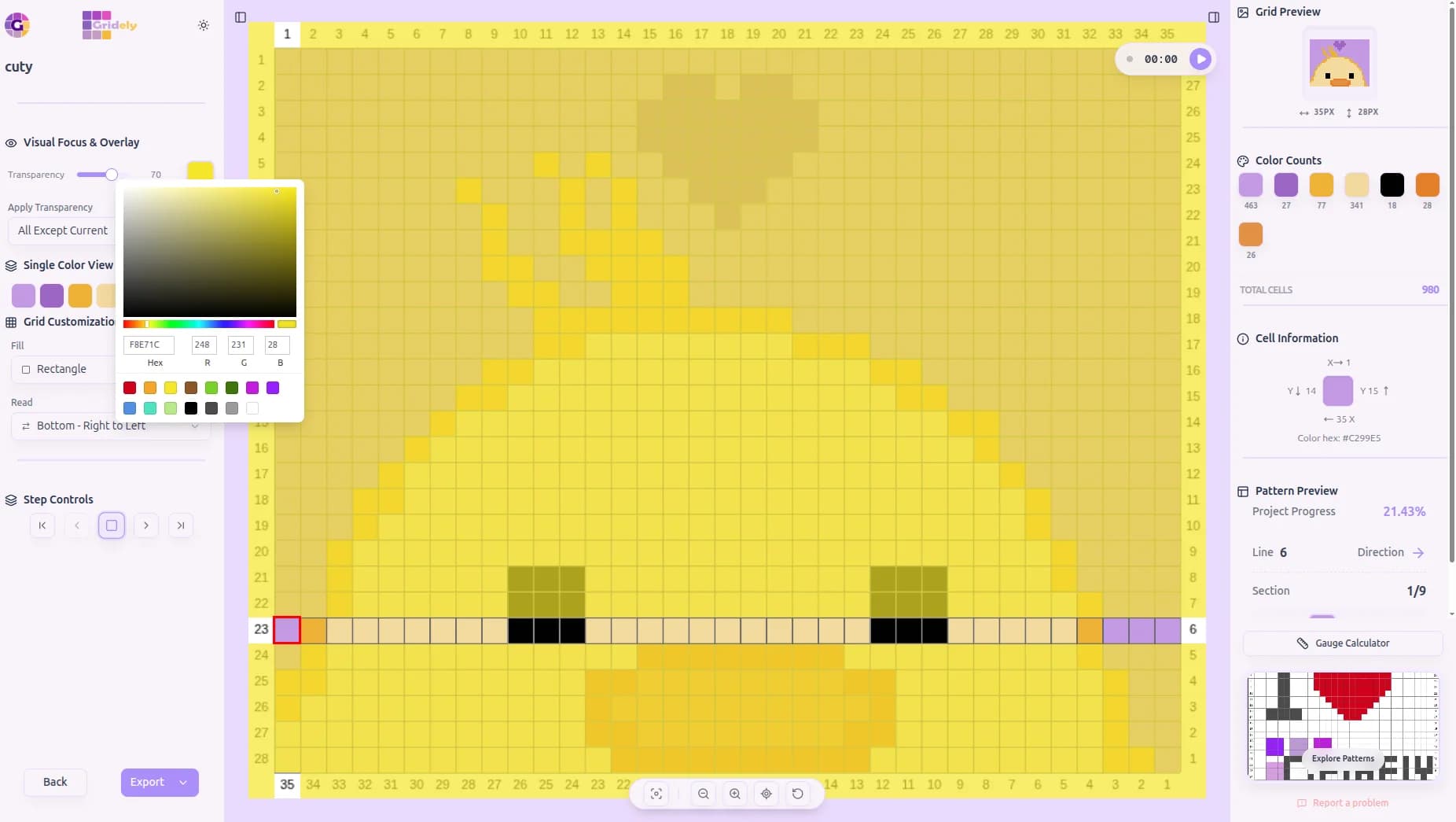
Match Your Overlay to Your Craft
Pick any highlight color and opacity for the current-row overlay.
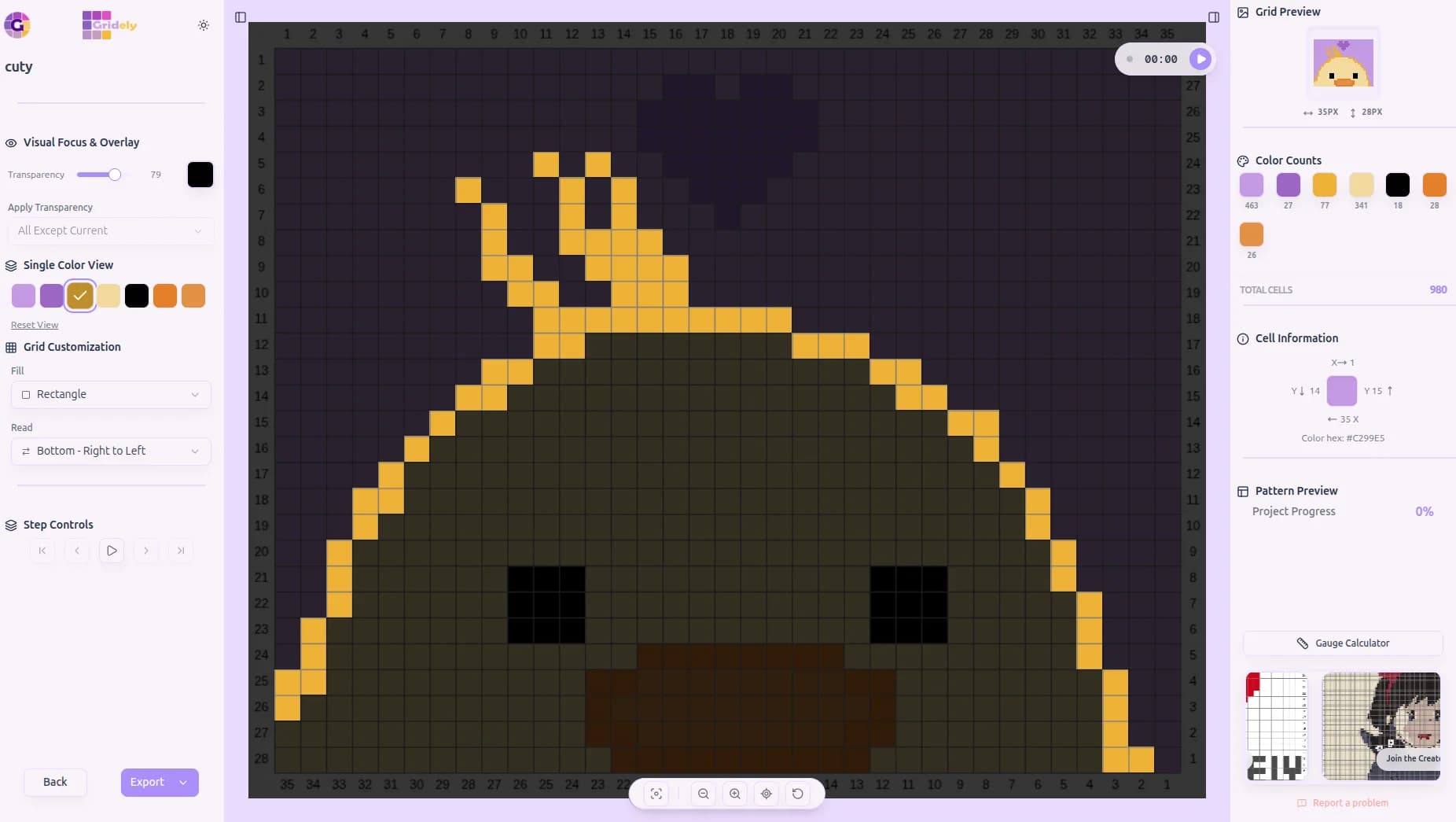
Isolate One Color at a Time
Follow a single color across the whole pattern, everything else fades away.
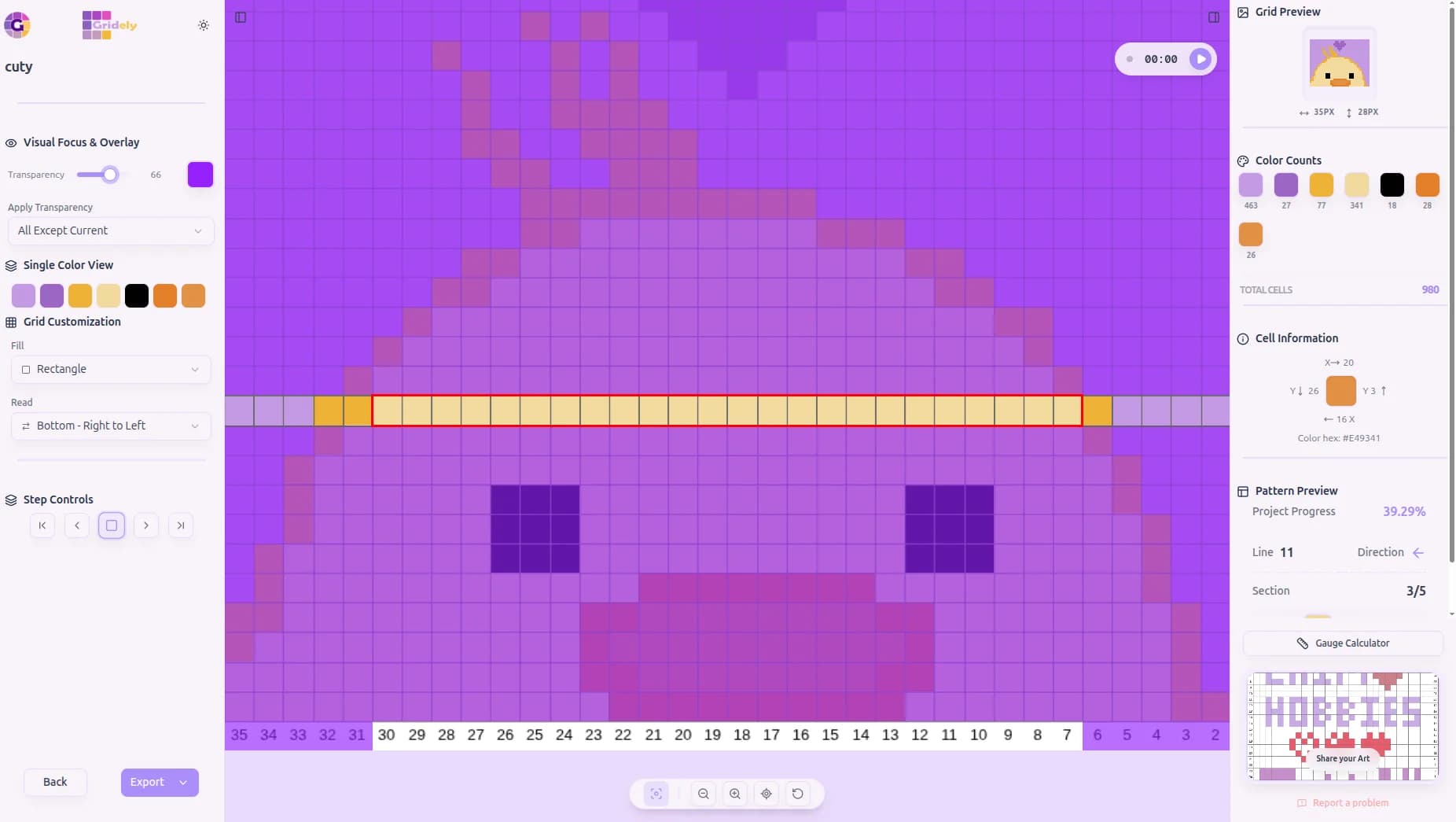
Focus Mode, Zoomed In
The view auto-zooms and pans to exactly where you're stitching.
6. Save, Export & Share Your Work
Your project is never trapped in the browser. It saves to your account, so you can close the tab on your laptop and open the same chart on your phone with your reading progress intact.
When you're ready to make it, export a print-ready PDF — a cover page, a colour key, and the chart split across pages sized to fit — or an SVG, a PNG, or a timelapse of the whole session.
- Saved to your account rather than one browser — five projects on a free plan
- Print-ready PDF patterns with a cover page, colour key and multi-page chart
- Read it as a visual chart, as block counts, or as written row-by-row instructions
- Export as SVG for clean scaling at any size, or a high-quality PNG
- Save the whole project as a .gdly file — including your exact reading progress
- Turn your creative process into a shareable timelapse (MP4 or WebM), 5 to 60 seconds
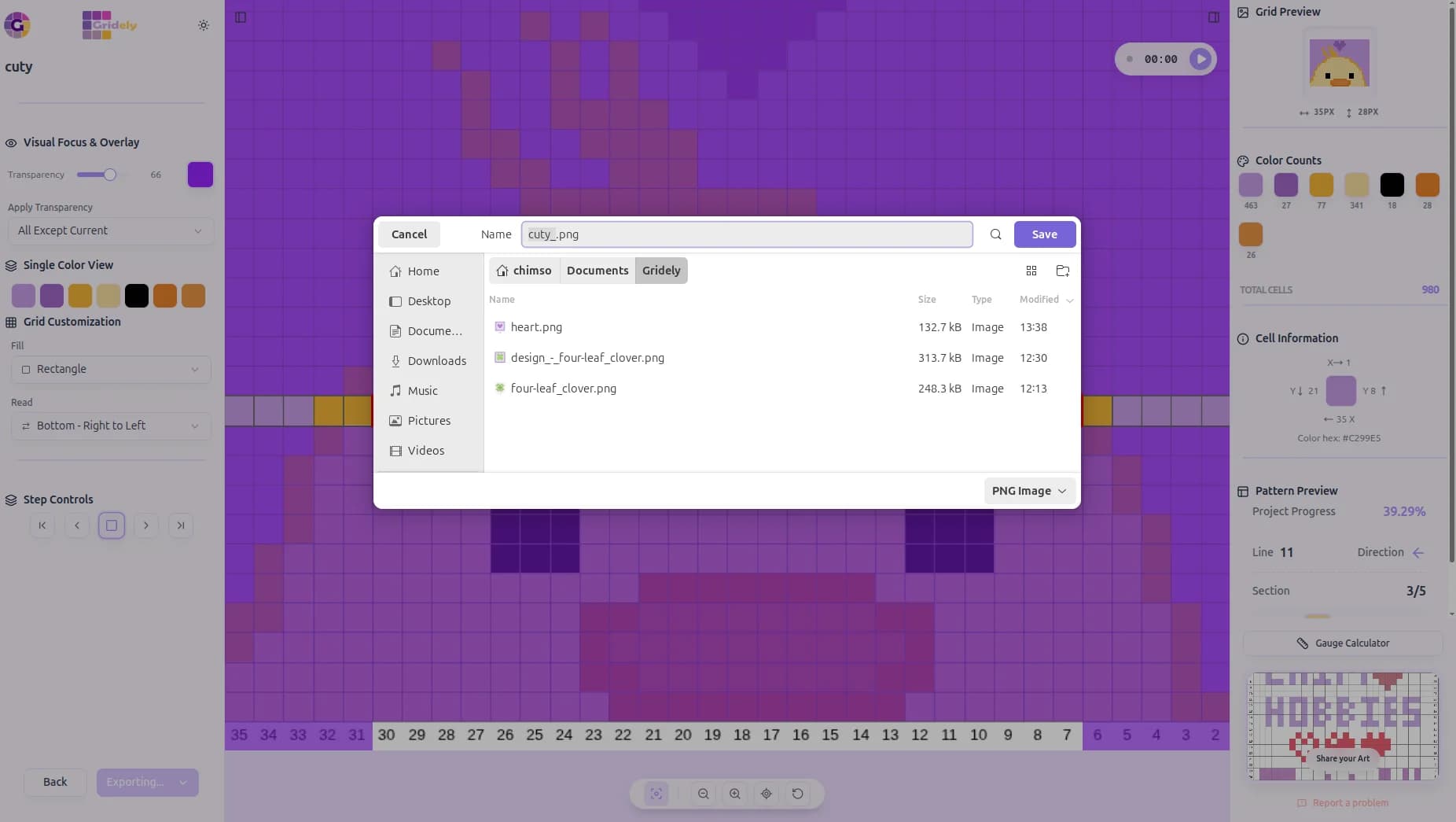
Export a Ready-to-Craft PNG
A high-quality image, ready to print or share.
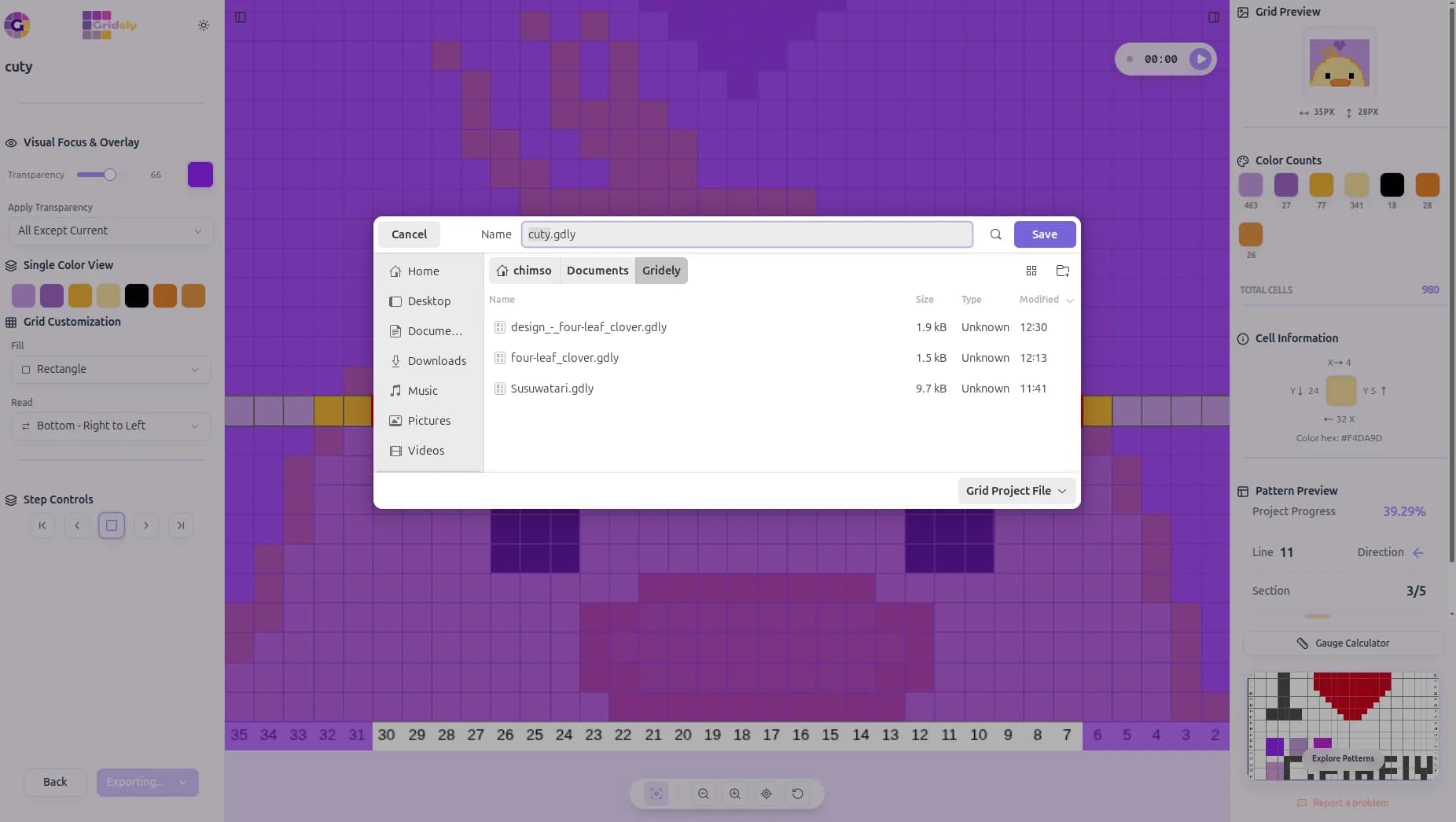
Save Your Full Project
Export and continue exactly where you left off, progress included.
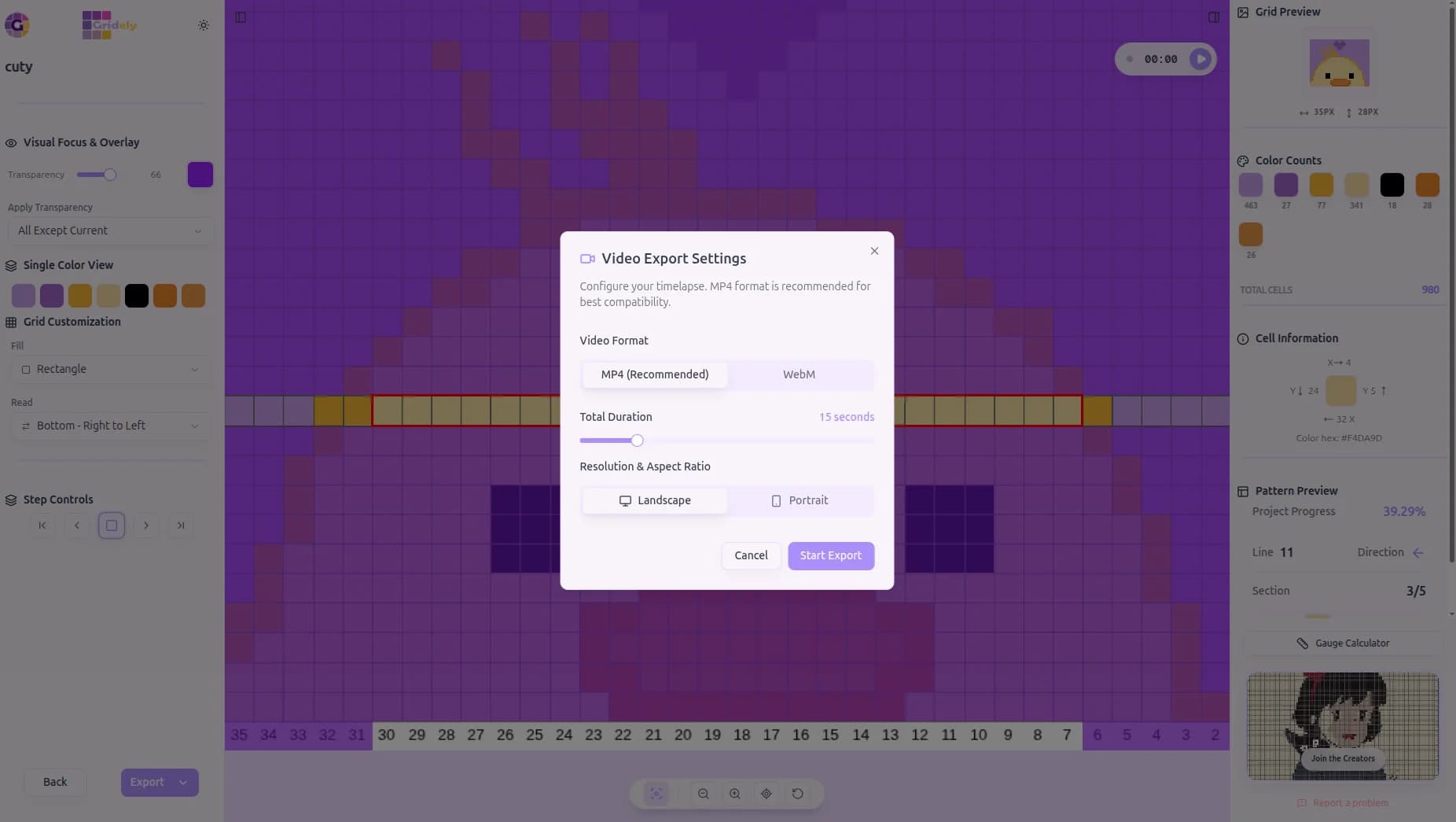
Turn It Into a Timelapse
Export your whole creative process as a shareable MP4 or WebM.
Key Benefits of Using Gridely
Designed by creators, for creators. We've thought of all the little details to make your hobby more enjoyable.
Frequently Asked Questions
Still have questions about how Gridely works? Here are the ones we hear most.
Is it really free?
Designing is. Building a pattern from a photo or from scratch, the full editor, the grid reader and up to five saved projects cost nothing, and a watermarked PDF preview is included. Clean, unwatermarked exports and room for more projects are paid — one pattern at a time, or on a plan.
Do I need an account?
You can upload a photo and start designing without one. A free account is needed to digitize a photo of a physical grid, to save a project, or to export — and it keeps five projects, reachable from any device you sign in from.
What image formats can I upload?
PNG and JPEG. Upload any size — we automatically resize and simplify it into a grid, up to 500 cells per side on a free account and 1000 on a paid plan.
Will Grid Detection work with my photo?
It handles most everyday photos, including ones taken at a slight angle — we'll automatically straighten and square it up for you. For busy backgrounds or tricky lighting, the manual crop tool and a couple of simple sliders let you fine-tune the result.
Does it work on my phone or tablet?
Yes, the whole editor is fully responsive. For detailed pixel-by-pixel work, we'd still recommend a larger screen when you can.
What crafts can I use this for?
Cross-stitch, crochet (including corner-to-corner), knitting charts, bead and perler patterns, and plain pixel art — the reader's 16 reading modes and 6 cell shapes are built to match whatever you're making.
Can I publish my own patterns?
Yes, from any account — publishing is free, whatever plan you're on. Every submission is looked at by a moderator before it goes live, so there's a short wait between sending it and seeing it in the gallery. You can follow where it's got to from your projects.
Join Our Creative Community
Gridely is more than just a tool; it's a hub for creators. Connect with us across our social platforms for inspiration, tutorials, and to showcase your work.
Stay in the Loop
Get notified about new features, deals, and updates from Gridely. No spam, unsubscribe anytime.
Ready to Make Your First Pattern?
Start designing patterns, charts, and pixel-based creations with Gridely. Designing is free, it's easy to get started, and it's growing with its community.